¶ AnexSPOT Cloud
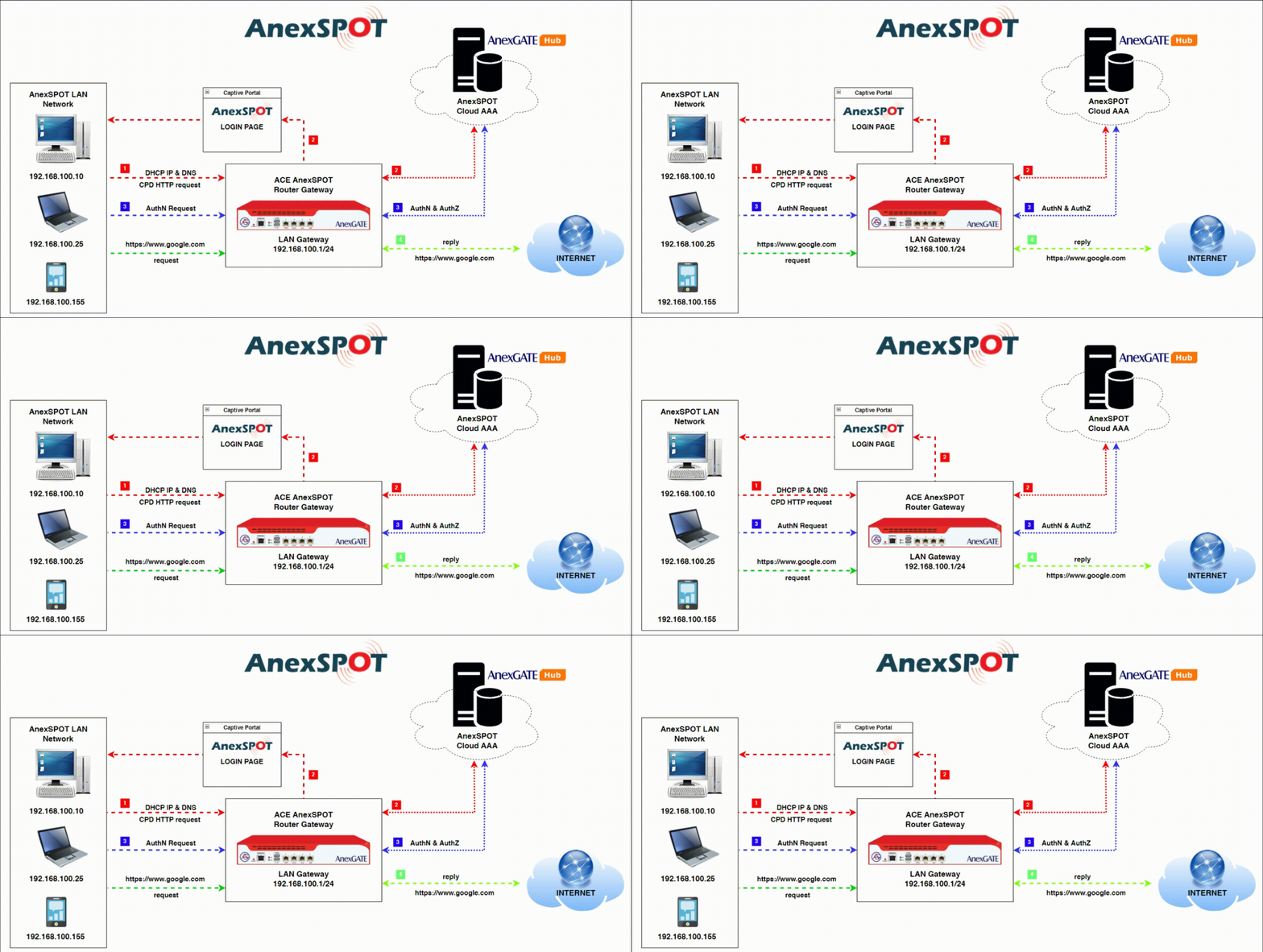
¶ AnexSPOT
¶ AnexSPOT Dashboard
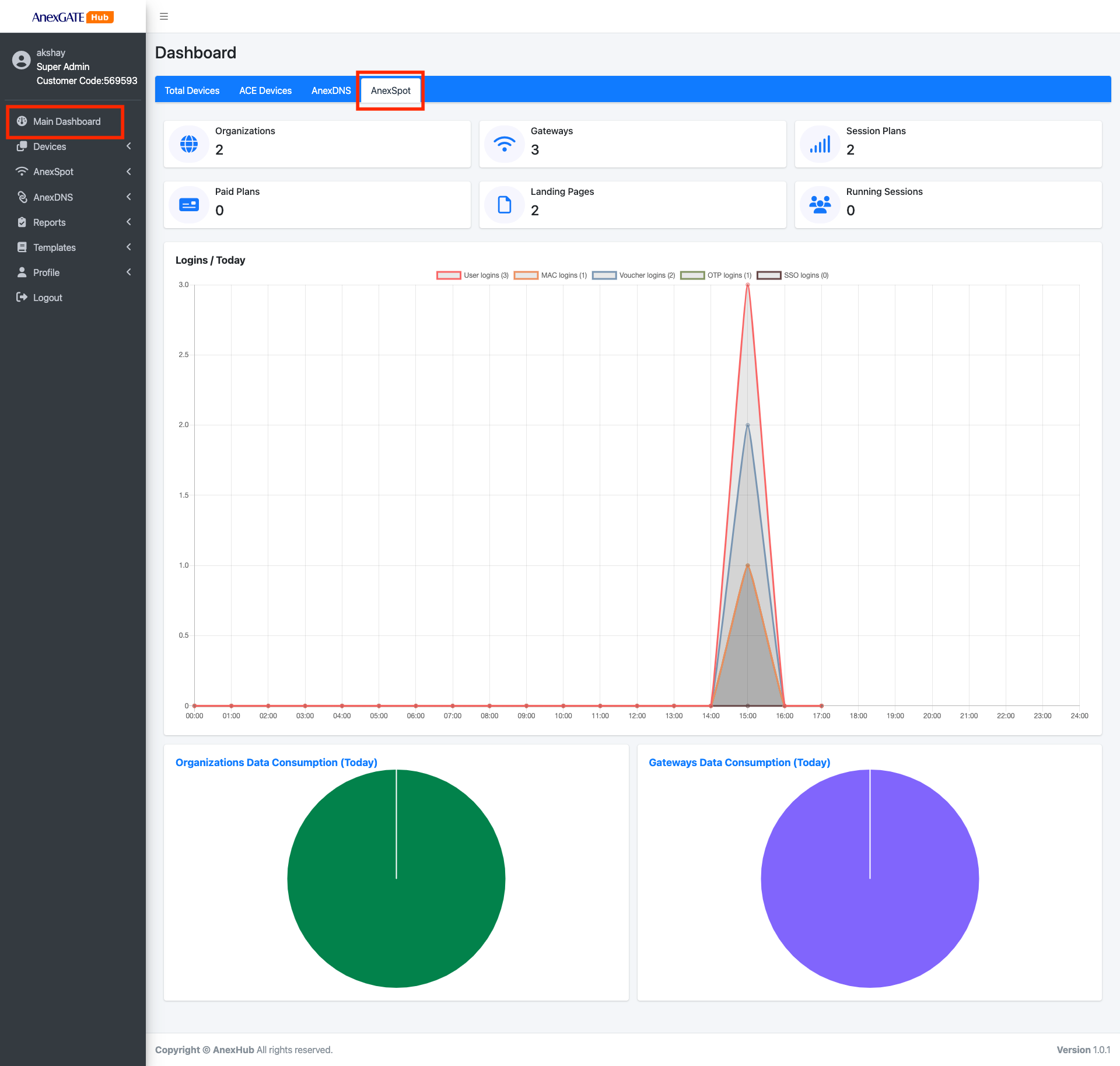
AnexSPOT Dashboard displays the summary of existing organisations, gateways and their respective Auth mode accounts which appear under a single registered Domain.
The Dashboard provides a graphical view of the DATA Consumption in terms of individual AnexSPOT Organisations and Gateways.
¶ AnexSpot Organizations
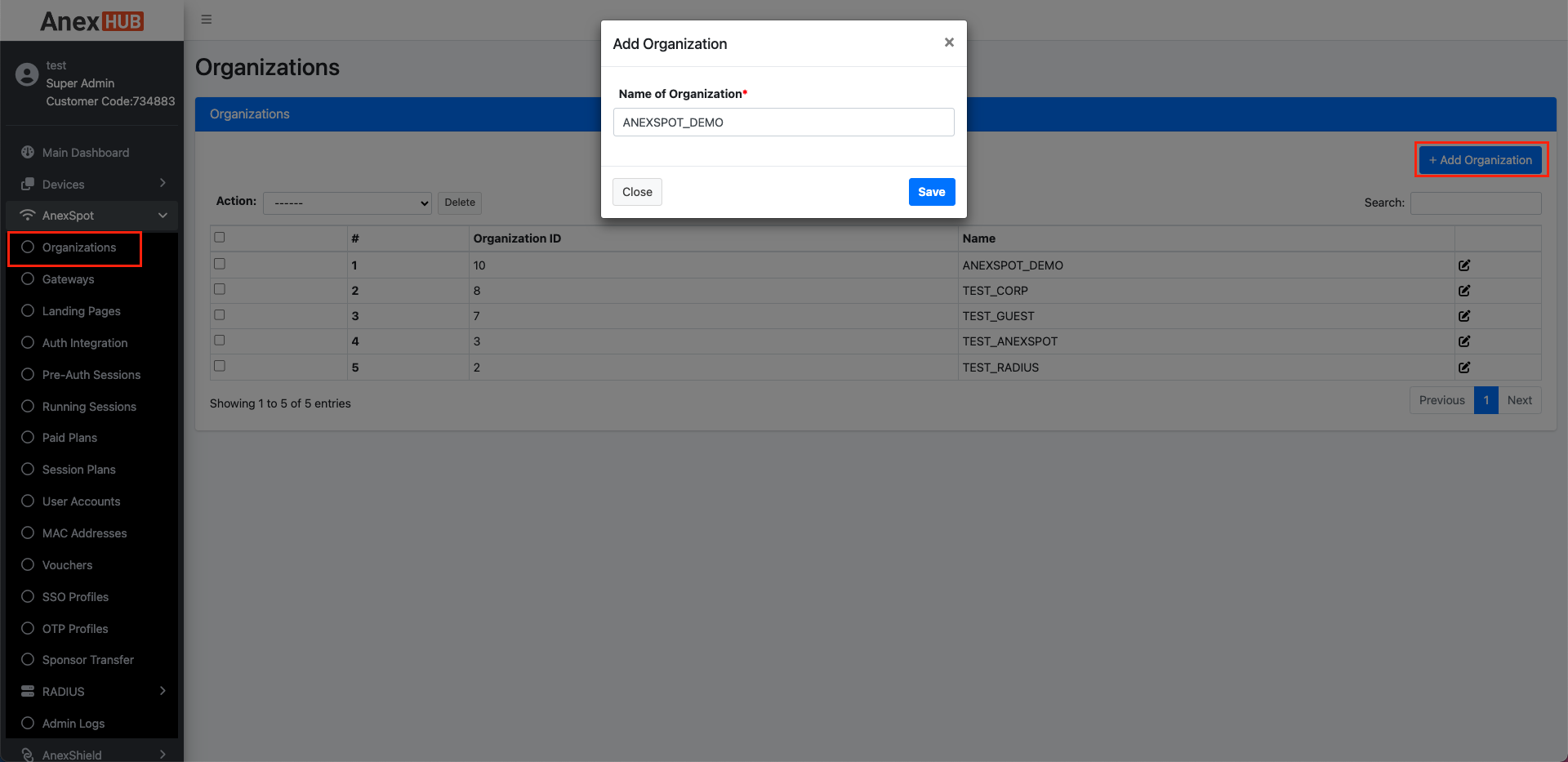
To create an AnexSpot Organization.
- Go to
AnexSpot-Organizations - Click on
+ Add Organizationon the top-right corner. - Assign a name to an Organization that will be used as a domain for AnexSpot
Gateways. - Click on
Save.
¶ AnexSPOT Gateway
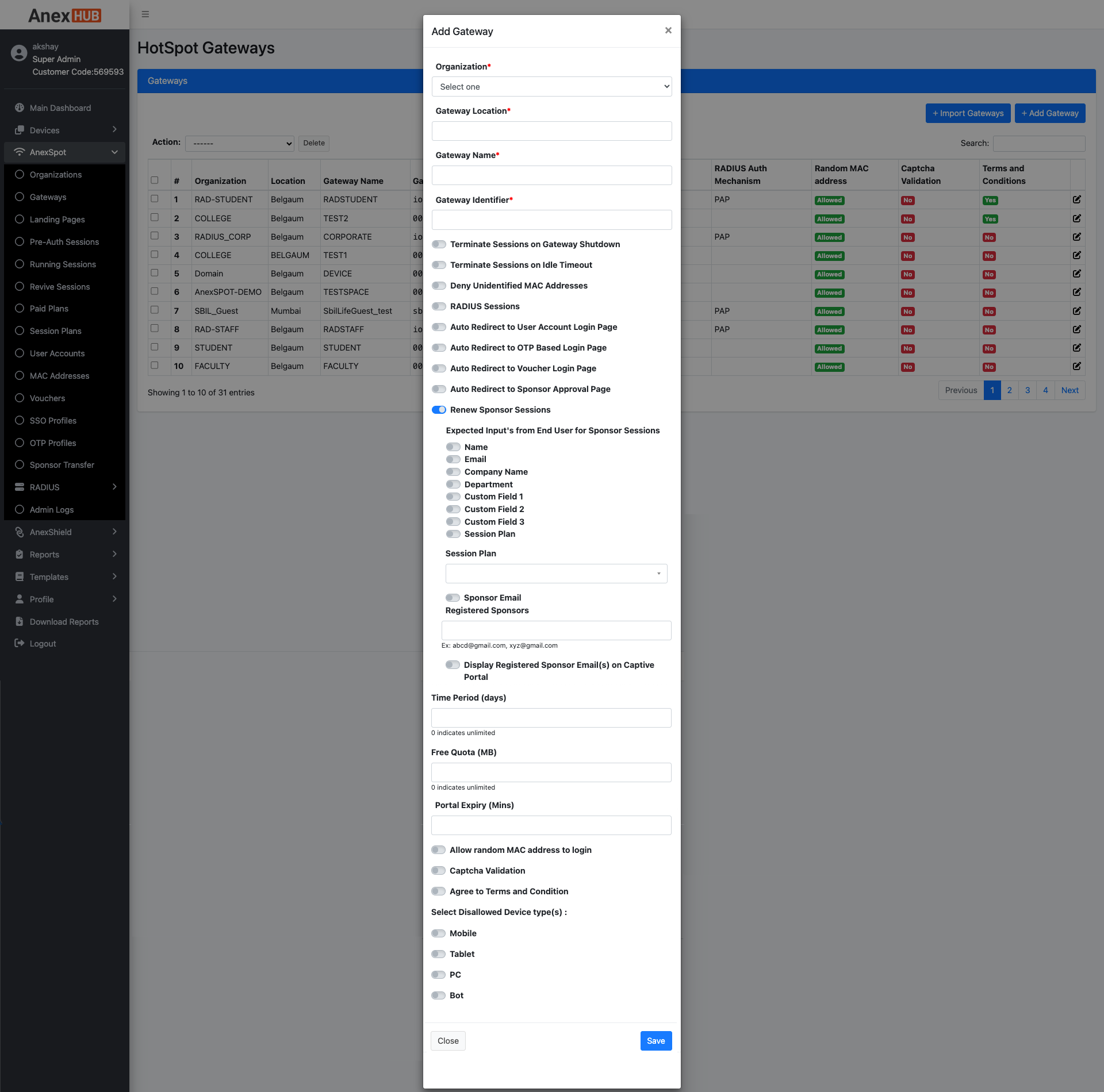
To configure the AnexSPOT AAA Gateway,
- Go to
Anexspot-Gateways. - Click on
Add GatewayTab, located at the Top right corner beside+Import Gateways. - To configure an
AnexSPOT Gatewayspecifically for AnexSPOT ACE device, let theRadius SessionsToggle button be inDisabledstate. - Configure other parameters as per the Gateway requirement.
Following are the parameters needed to configure a Gateway under AnexSPOT Gateways.
|
Elements |
Description |
|---|---|
| Organization | Select an organization from the drop down menu. |
| Gateway Location | Specify a name as the Gateway Location. |
| Gateway Name |
Enter unique keyword as a Gateway Name. Note - Gateway Name must be single word or used with an underscore between the words. Example - Anex_DEMO. |
| Gateway Identifier |
Enter Gateway MAC configured on Identifier Format for RADIUS SSID as - |
| Terminate Sessions on Gateway Shutdown | Enabling this option will terminate the Running Sessions when Gateway Shutdown is triggered on the router. |
| Terminate Sessions on Idle Timeout | Enabling this option will terminate the Running Sessions when Idle Timeout has been triggered on the Gateway device with a time limit for the Authenticated Clients that are inactive. |
| Deny Unidentified MAC Address | Gateway does not allow the users to access login page or internet, until it has been configured under MAC Address accounts. |
| RADIUS Sessions |
Toggle between AnexSPOT and RADIUS configuration by enabling/disabling the Radius Sessions toggle button. Note - RADIUS Sessions must be in |
| Auto Redirect To |
Enabling one of the options below will redirect the user to specified Authentication mode page.
Note: Auto Redirect must be enabled only with one authentication mode per gateway. |
| Renew Sponsor Sessions | Enabling this option will prompt the user with a login page to contact the sponsor to re-approve/renew session, instead of filling back the login information again and submitting for Sponsor approval. |
| Expected Inputs from End user for Sponsor sessions |
Toggle between required user input required from the end user who connects the captive portal network on gateway basis. Following are the options to enable or disable user inputs.
Note:
|
|
User Type/Session Plan for Sponsored sessions |
This option is visible/applicable when the User Type/Session plan is disabled under Expected Inputs from End user for Sponsor sessions. Session plan must be created and selected from the drop down list to apply the network policy for the users who access the internet after Sponsor Approval. |
| Registered sponsors |
Assign Email Addresses in the gateway for the Radius Clients to submit the user input information to authorized Sponsor Email IDs only, to validate and approve Clients to access the network. Example - |
| Display Registered Sponsor Email(s) on Captive Portal | Enabling this option will display sponsor email ids in Captive Portal. Note - The user cannot modify the registered sponsor email ids and only select the mail id for Sponsor approval from the specific sponsor. |
| Time Period (Days) | Assign number of days interval to renew the Data quota cycle. (Only Applicable for AnexSPOT AAA) |
| Quota (MB) | Assign Data quota in Megabyte for the users of the Gateway to access the internet after the first authentication via captive portal login. Once the Data Quota is consumed the user will be redirected and sent to Pay Portal till the Time Period cycle in renewed. |
| Portal Expiry (Mins) | Specify the Portal expiry in minutes to consider the given url of Login Portal to be considered as valid. The Login URL is considered invalid once the Portal expiry crosses the expiry limit. The end user will have to reconnect to the network to re-generate a new Login URL session to get Internet access. |
| Allow random MAC address to login | Enabling Allow Random MAC Address will permit the radius clients with Random MAC Addresses enabled devices. |
| Captcha Validation | Enable this to add an extra protection from spamming, making sure only a human being with right password can login. |
| Agree to Terms and Conditions | Enable this to prompt the user to agree terms and conditions before login. |
| Select Disallowed Device Types |
Select the devices from the list to disallow them from login. Devices that can be blocked from Login - Mobile Devices, Tablet, PC, Bot. |
¶ Plans
¶ Paid Plans
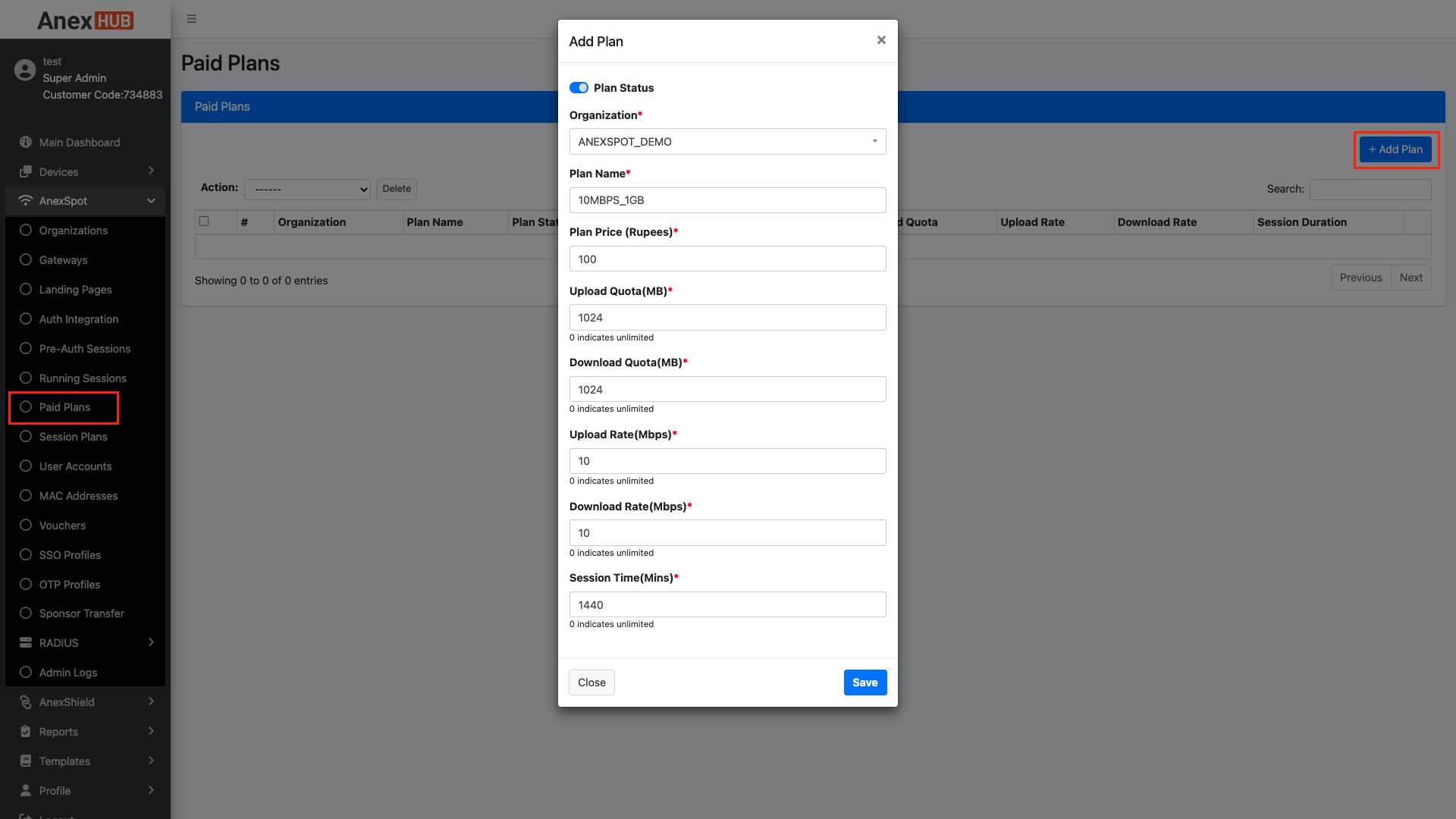
Paid plans are pre-configured templates consisting of AnexSPOT network policy parameters applied to the user once they choose a Paid plans in Captive Login portal, pay the amount for the plan and gets successfully authenticated with various login methods.
To create a Paid Plans, Go to -
AnexSPOT-Plans-Paid Plans- Click on
+ADD Planlocated at the top right end.
Following are the parameters that can be configured as a network policy parameters -
|
Elements |
Description |
|---|---|
| Plan Status | Enable or Disable the Plan from displaying in the Session plans. |
| Organization | Select an organization for the RADIUS Client from the drop down menu. |
| Plan Name | Specify a keyword for the session plan. |
| Plan Price in (Indian Rupees) | Specify the price for the plans to be displayed for the user when opting for the data plans for the access to the internet. |
| Upload Quota (MB) | Specify Upload Quota limit in terms of MB, for the user after successful login. Once the user crosses the limit, they will be logged out of the session. |
| Download Quota (MB) | Specify Download Quota limit in terms of MB, for the user after successful login. Once the user crosses the limit, they will be logged out of the session. |
| Upload Rate (MBPS) | Specify Upload Bandwidth/Speed Rate limit in terms of mbps, for the user after successful login. Once the user crosses the limit, they will be logged out of the session. |
| Download Rate (MBPS) | Specify Download Bandwidth/Speed Rate limit in terms of mbps, for the user after successful login. Once the user crosses the limit, they will be logged out of the session. |
| Session Time (Minutes) | Specify Session limit in terms of minutes for the user after successful login. Once the user crosses the limit, they will be logged out of the session. |
¶ Session Plans
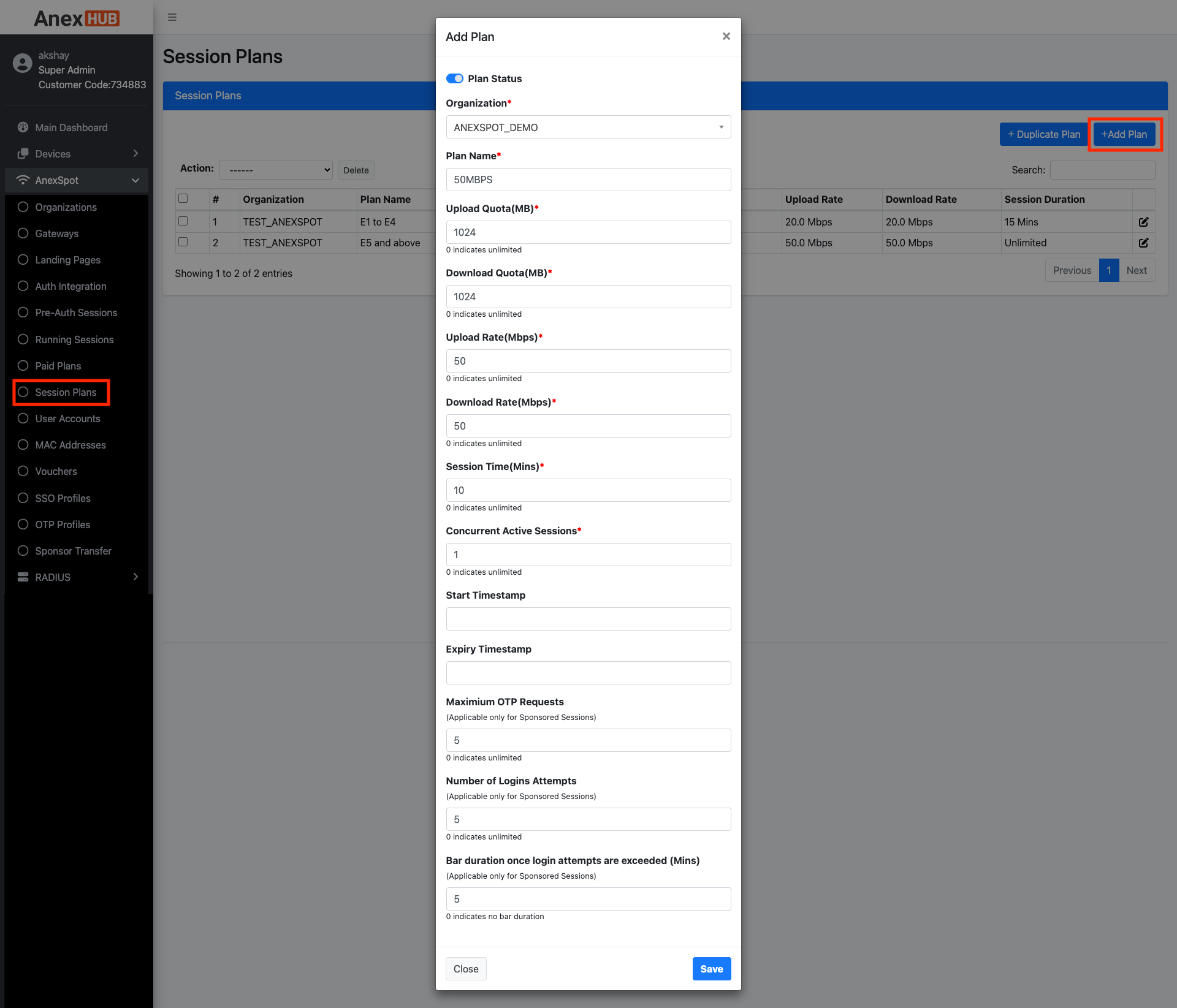
Session plans are pre-configured templates consisting of AnexSPOT network policy parameters applied to the user once they choose a Session plan in Login portal during login period and gets successfully authenticated with various login methods.
To create Session Plans, Go to -
AnexSPOT-Plans-Session Plan- Click on
+ADD Planlocated at the top right end.
Following are the parameters that can be configured as a network policy parameters-
|
Elements |
Description |
|---|---|
| Plan Status | Enable or Disable the Plan from displaying in the Session plans. |
| Organization | Select an organization for the RADIUS Client from the drop down menu. |
| Plan Name | Specify a keyword for the session plan. |
| Upload Quota (MB) | Specify Upload Quota limit in terms of MB, for the user after successful login. Once the user crosses the limit, they will be logged out of the session. |
| Download Quota (MB) | Specify Download Quota limit in terms of MB, for the user after successful login. Once the user crosses the limit, they will be logged out of the session. |
| Upload Rate (MBPS) | Specify Upload Bandwidth/Speed Rate limit in terms of mbps, for the user after successful login. Once the user crosses the limit, they will be logged out of the session. |
| Download Rate (MBPS) | Specify Download Bandwidth/Speed Rate limit in terms of mbps, for the user after successful login. Once the user crosses the limit, they will be logged out of the session. |
| Session Time (Minutes) | Specify Session limit in terms of minutes for the user after successful login. Once the user crosses the limit, they will be logged out of the session. |
Note - Session Plans must be created before configuring AnexSPOT Gateway in order for the session plan to be visible when configuring AnexSPOT Gateway specifically for Sponsored Session User Authentication.
¶ Running Sessions
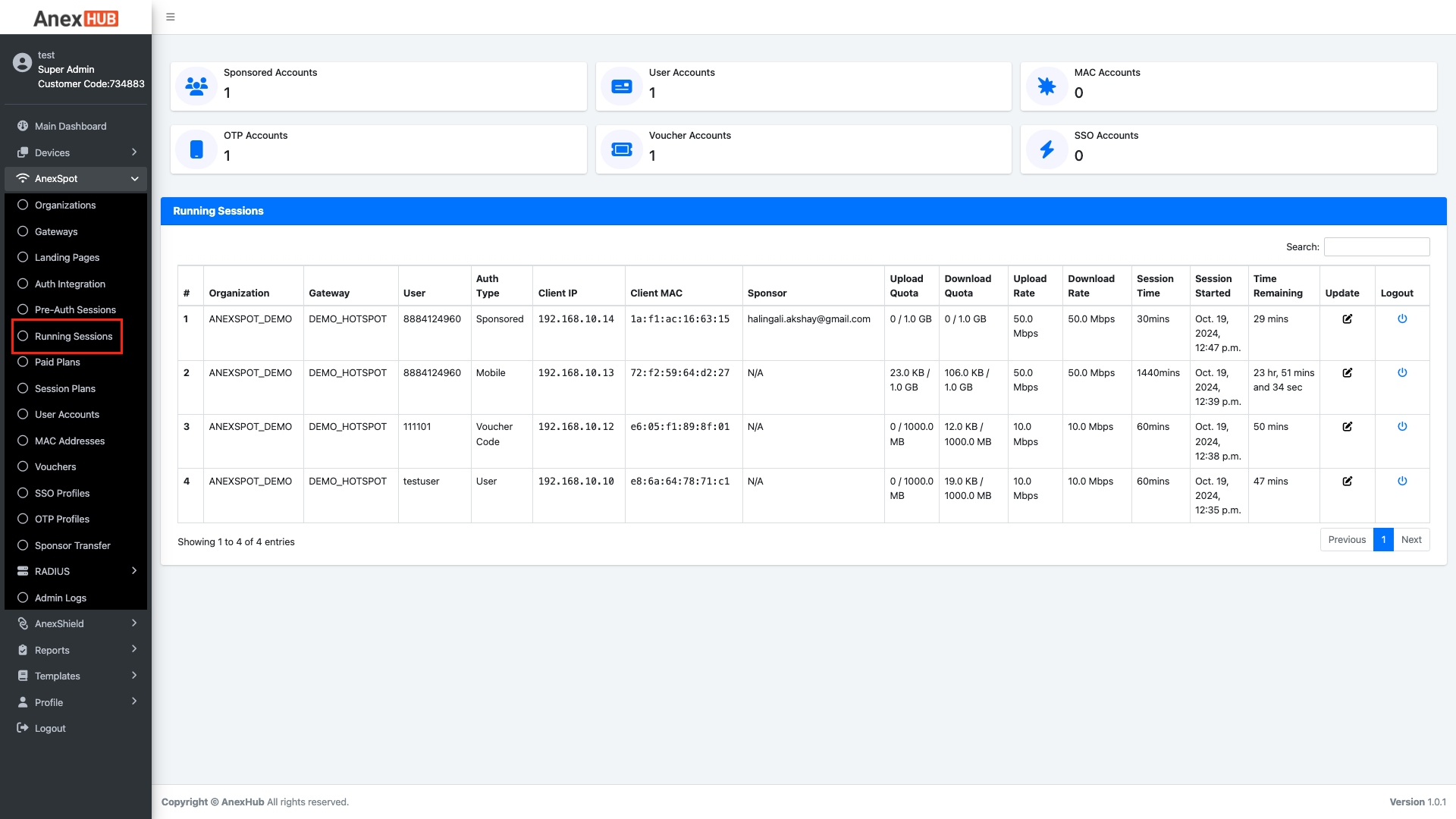
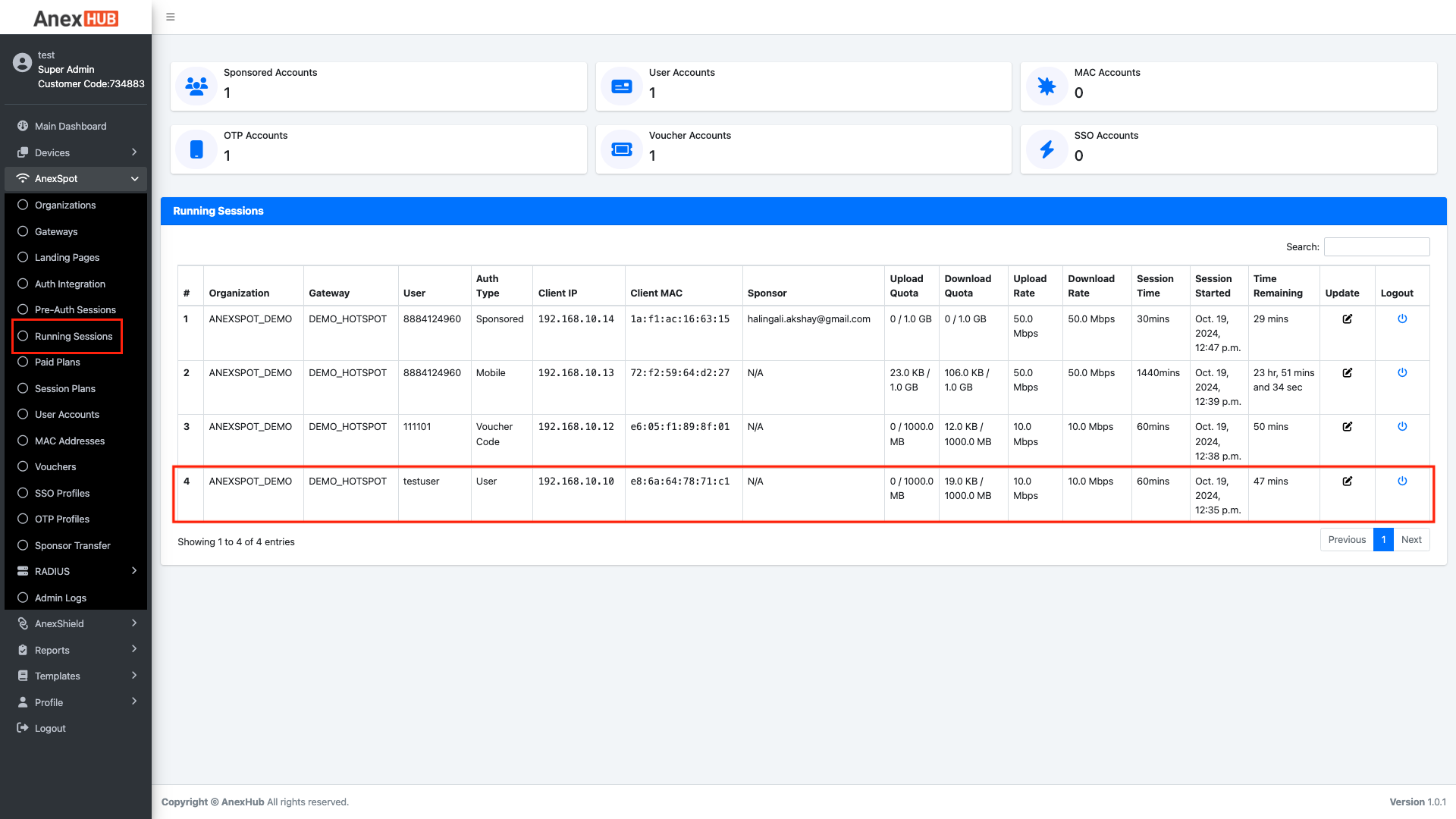
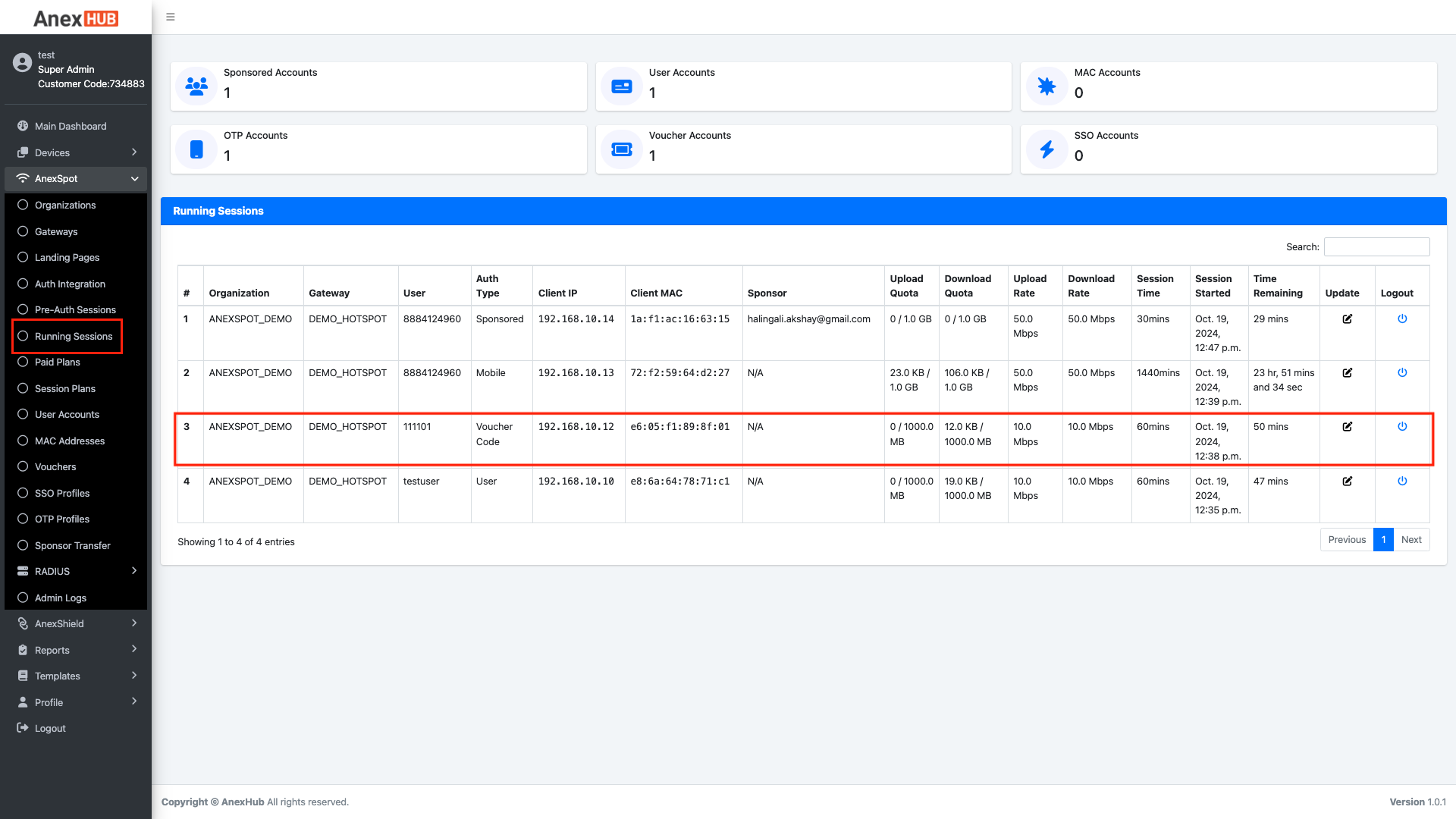
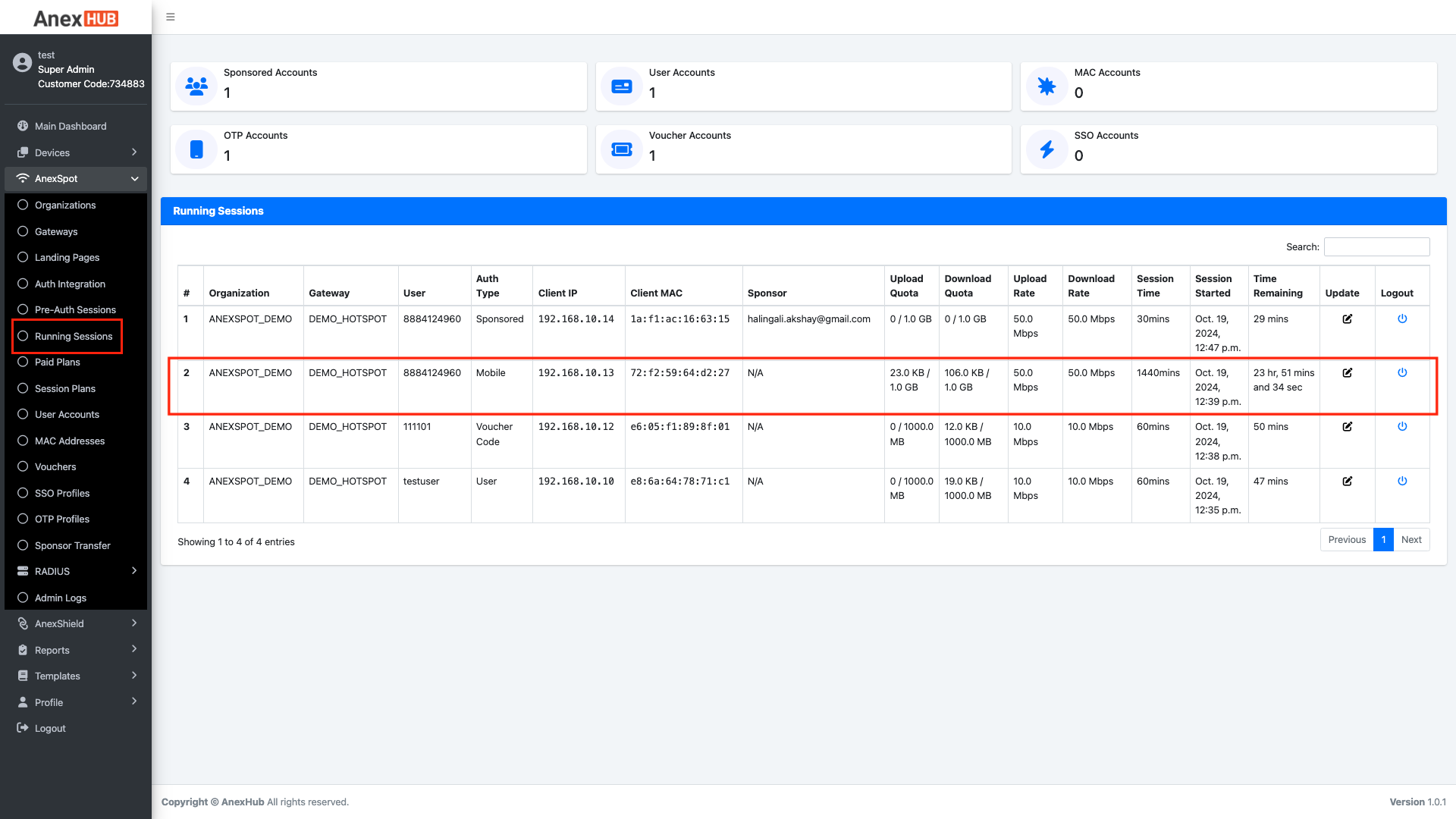
Running Sessions display current Live Running user sessions after the client devices have been successfully authenticated using various Login methods such as User Account, Voucher, Mobile OTP Based, Sponsored etc...
The Radius Running Sessions include various networking Parameters to display information statistics as below -
|
Elements |
Description |
|---|---|
| Organisation | Displays the organisation of the user Login. |
| Gateway | Displays the Gateway used for the user Login. |
| User | Displays user information who has been successfully authenticated with the login credentials. |
| Auth Type | Displays the Authentication Type used by the user to Login successfully. |
| Session ID | Displays unique account session ID generated for the user after successful login. |
| Client IP | Displays IP Address of the user under client Radius network. |
| Client MAC | Displays MAC Address of the user under client Radius network. |
| Upload Quota | Displays Upload Quota limit in terms of mb, for the user after successful login. Once the user crosses the limit, they will be logged out of the session. |
| Download Quota | Displays Download Quota limit in terms of mb, for the user after successful login. Once the user crosses the limit, they will be logged out of the session. |
| Upload Rate | Displays Upload Bandwidth/Speed Rate limit in terms of mbps, for the user after successful login. Once the user crosses the limit, they will be logged out of the session. |
| Download Rate | Displays Download Bandwidth/Speed Rate limit in terms of mbps, for the user after successful login. Once the user crosses the limit, they will be logged out of the session. |
| Session Time | Specify Session limit in terms of minutes for the user after successful login. Once the user crosses the limit, they will be logged out of the session. |
| Session Started | Displays the Date and Time of the user session once the client has been successfully Logged in. |
| Sponsorer Email | Displays the Email id of the Sponsor who has approved the user for the Access of the internet resources. |
| Time Remaining | Displays the Time Remaining for the Successful Logged in Client if Limited Session Time has been assigned for the client. |
| Update | Click on update to modify the assigned networking parameters when the Session has been started initially. The COA Request is sent to the controller once the parameters have been modified and saved. |
| Logout | Click on Logout icon to force logout the successful authenticated client. |
¶ Landing Pages
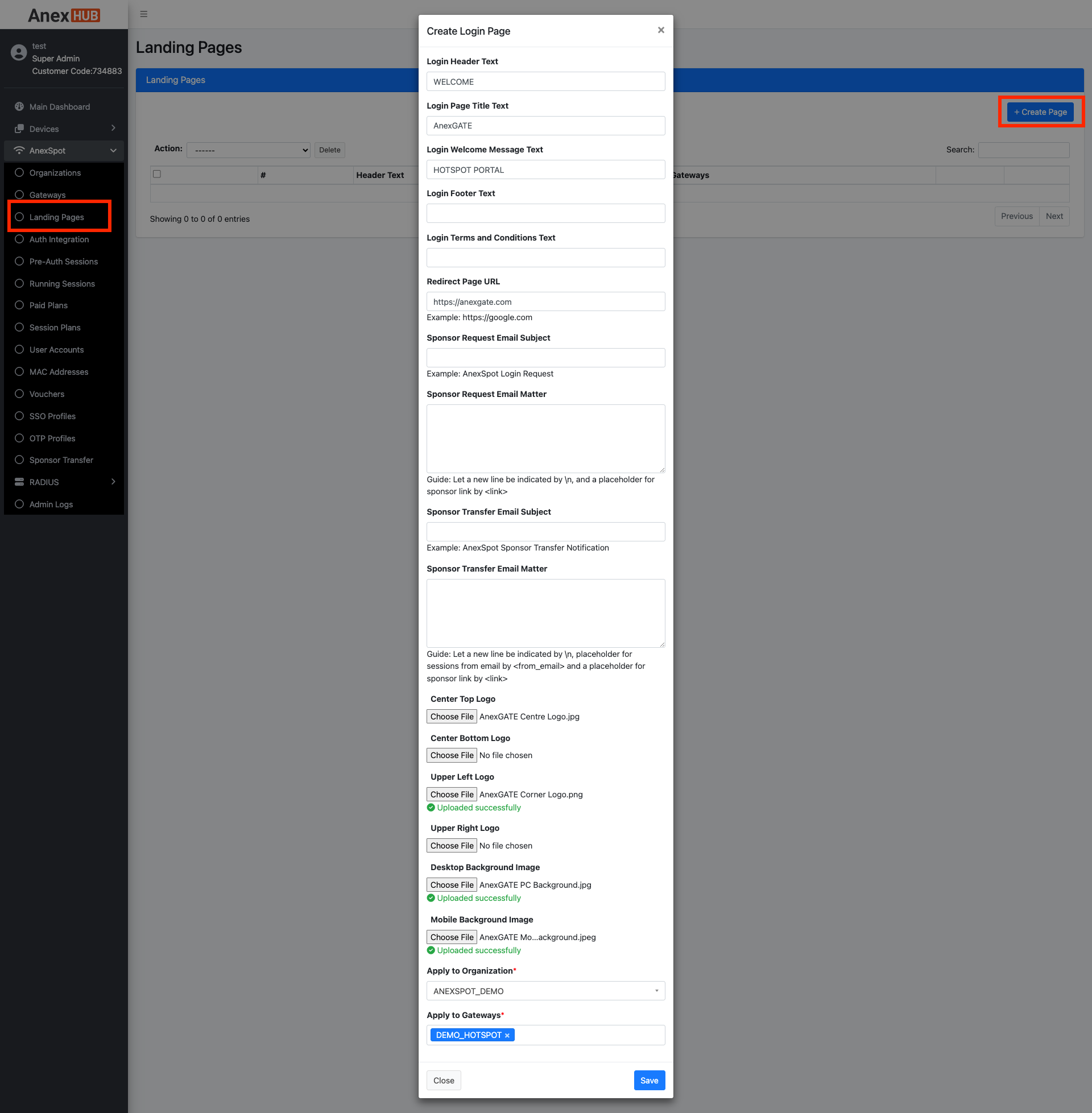
To customise Landing Login Page, Go to -
AnexSPOT>Landing Pages- Click on
+Create Pagelocated at the top right end corner. - Configure the
Landing Pageusing given parameters.
Following are the parameters to configure Custom Login Page -
|
Elements |
Description |
|---|---|
| Login Header Text | Enter Login Header Text for the login page. |
| Login Page Title Text | Enter Login Page Title Text for the login page. |
| Login Welcome Message Text | Enter Login Welcome Message Text for the login page. |
| Login Footer Text | Enter Login Footer Text for the login page. |
| Login Terms & Conditions Text |
Enter Customized Login Terms & Conditions Text for the login page. Note - Terms & Conditions must be enabled under AnexSPOT Gateway configuration for prompting the user for agreeing Terms & Conditions |
| Redirect Page URL | Enter Redirect Page URL for the user to redirect to specific web page after Successful login. |
| Sponsor Email Subject | Enter the Email Subject for the customized email to be sent to the sponsor. |
| Sponsor Email Matter |
Enter the E-mail body matter for the customized email to be sent to the sponsor. Example: Regards,\n |
| Sponsor Transfer Email Subject | Enter the Email Subject for the customized email to be sent to the transfered sponsor. |
| Sponsor Transfer Email Matter |
Enter the E-mail body matter for the customized email to be sent to the sponsor transfer. Sponsor approvals have been transferred Click on the link below - \n\n
Regards,\n Akshay\n AnexGATE \n |
| Center/Left/Right/Bottom Logo | Upload Customized logo to be displayed on the Login page. |
| Background Image | Upload Background Image to be displayed on the Login page. |
| Apply to Organization | Select the Organizations where customized Login page must be displayed for the User as a login page after joining the network. |
| Apply to Gateways | Select the Gateways of the organizations selected earlier where customized Login page must be displayed for the User as a login page after joining the network. |
| SAVE | Save the configuration. |
¶ Landing Page Preview
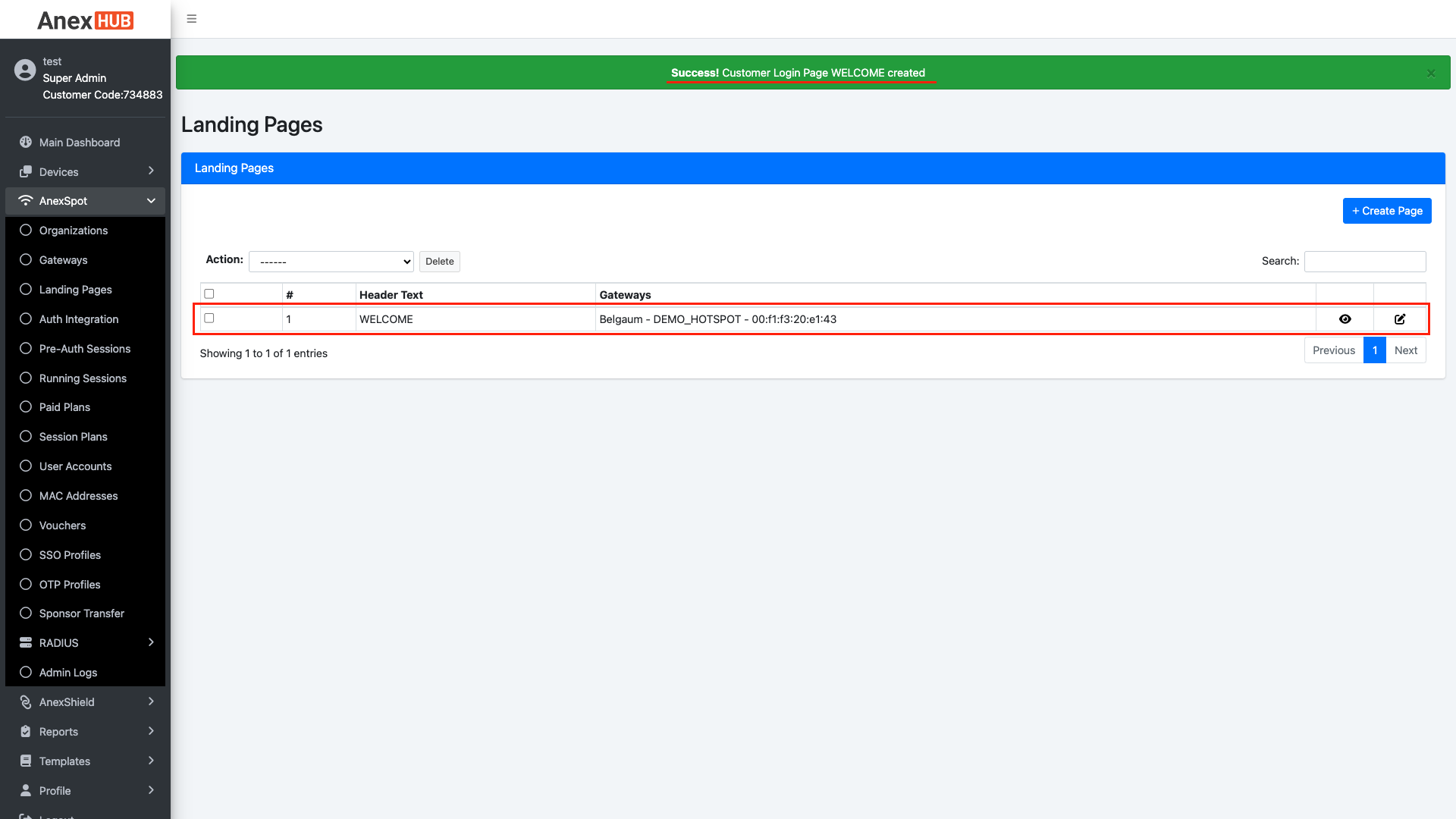
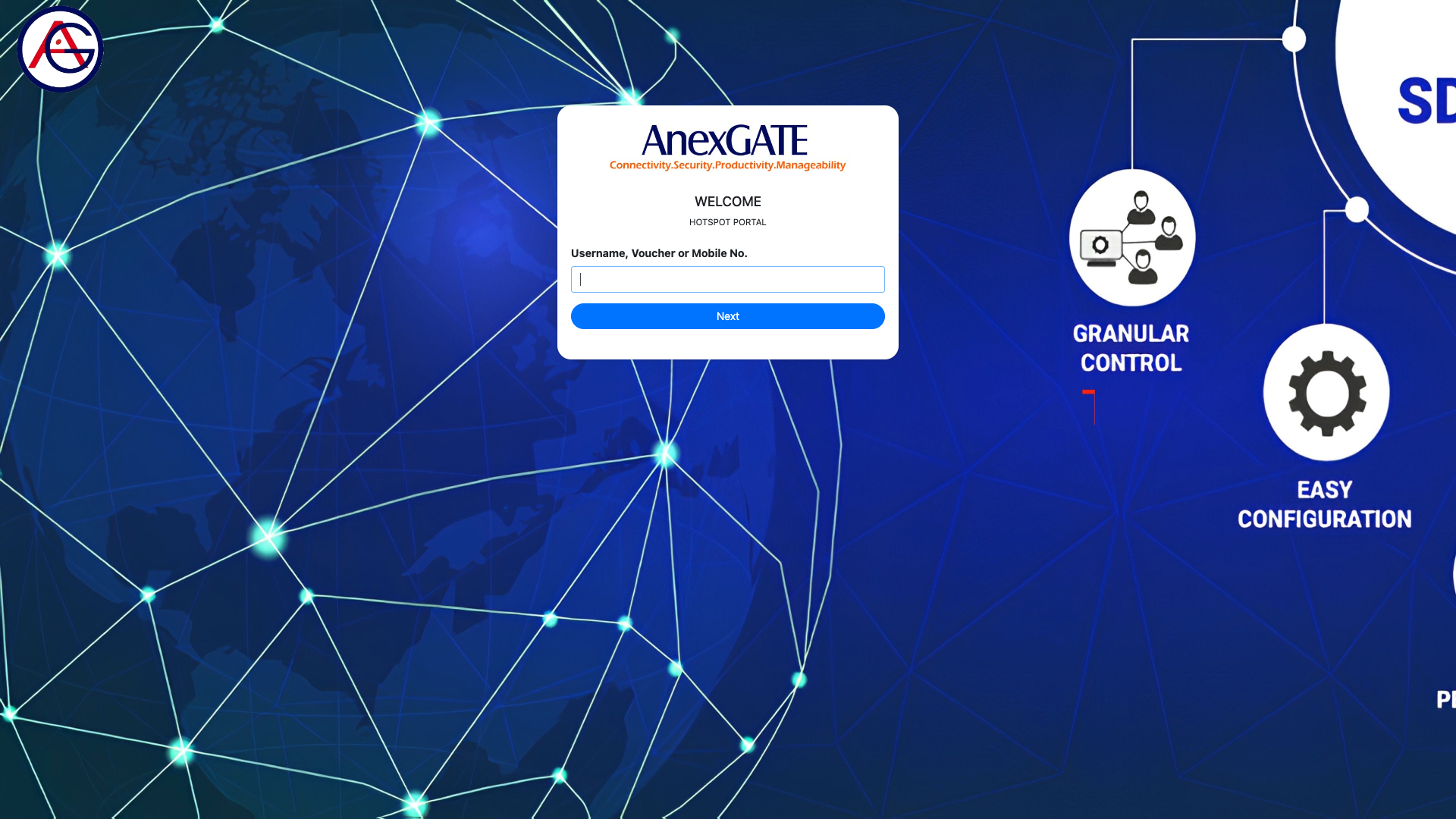
Landing Page Preview is available once the Land Page has been saved.
¶ Accounts
AnexSPOT service has various User Authentication modes to select from. Below are some of the Authentication methods the user can use to login via AnexSPOT Login Portal.
¶ User Accounts
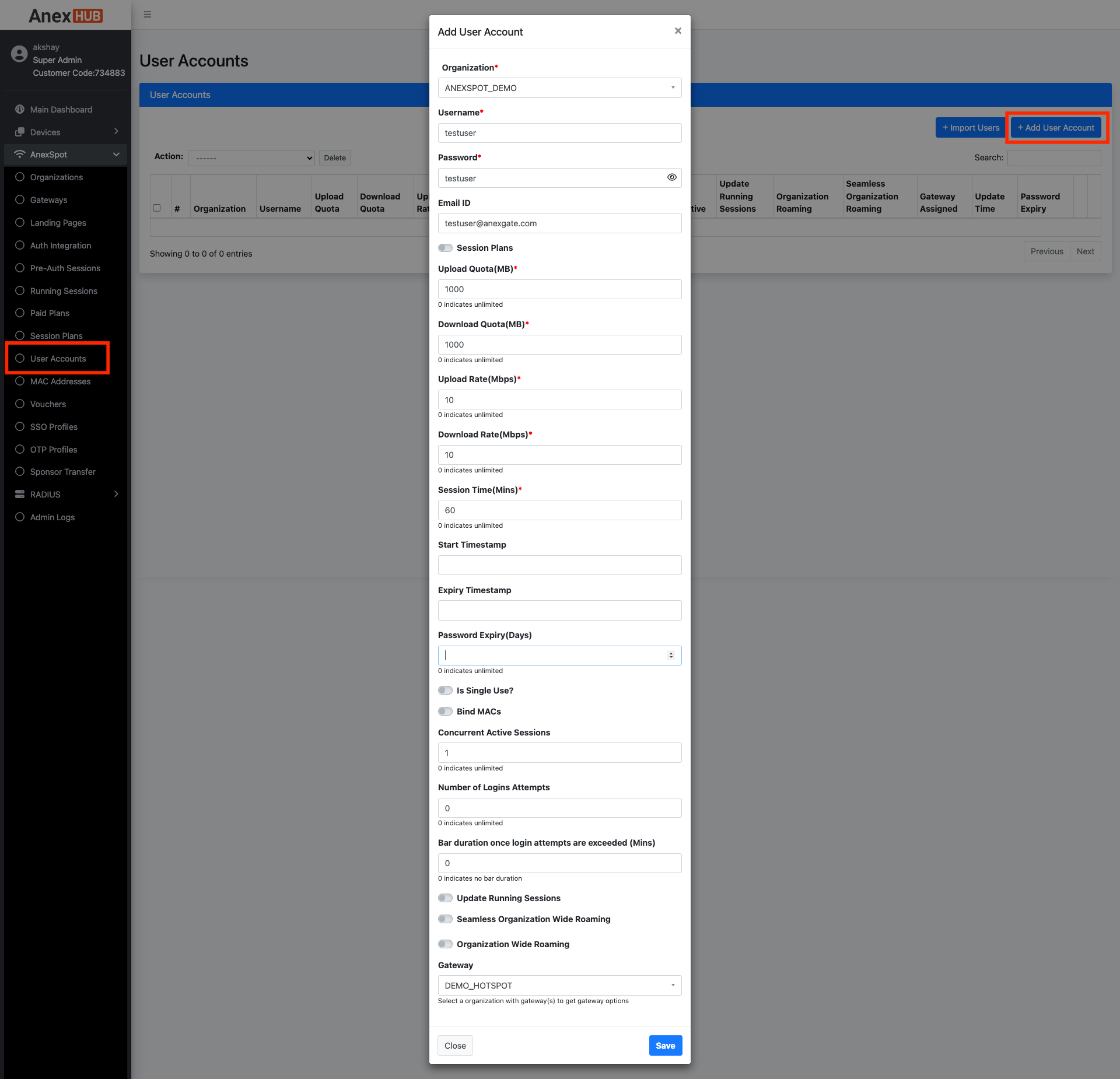
To configure Username Based Authentication, Go to -
AnexSPOT-User Accounts- Click on
+Add User Accountbutton located at the Top Right Corner. - Configure
Username Based Authby assigning respective networking parameters.
Following are the parameters needed to configure a Username based Auth under AnexSPOT service.
|
Elements |
Description |
|---|---|
| Organization | Select an organization for the AnexSPOT from the drop down menu. |
| Username | Enter Username credential for user login. |
| Password | Enter Password credential for user login. |
| Enter Email ID of the User. (Optional). | |
| Session Plans |
The Session plan are pre-configured network attribute templates which when enabled the user can be assigned a certain session plan which will save time of configured each network params manually. Toggle the session plan and choose any of the plans configured under Radius Session Plans shown in the drop-down. Note - If enabled, the network parameters like Upload/Download Quota/Rate gets hidden and session plans are displayed in the drop down. |
| Upload Quota (MB) | Specify Upload Quota limit in terms of mb, for the user after successful login. Once the user crosses the limit, they will be logged out of the session. |
| Download Quota (MB) | Specify Download Quota limit in terms of mb, for the user after successful login. Once the user crosses the limit, they will be logged out of the session. |
| Upload Rate (MBPS) | Specify Upload Bandwidth/Speed Rate limit in terms of mbps, for the user after successful login. Once the user crosses the limit, they will be logged out of the session. |
| Download Rate (MBPS) | Specify Download Bandwidth/Speed Rate limit in terms of mbps, for the user after successful login. Once the user crosses the limit, they will be logged out of the session. |
| Session Time (Minutes) | Specify Session limit in terms of minutes for the user after successful login. Once the user crosses the limit, they will be logged out of the session. |
| Password Expiry(Days) | Assign an interval period of days for the User Password to be considered as valid to login. Once the Password expires the user wont be able to use the credentials to get the access to the internet. |
| Bind MACs |
Enable the Bind MACs, to bind the mac address with the username. The number of MACs to be binded can be specified once the Bind MACs toggle key has been enabled. |
| Concurrent Active Sessions | Specify the number of Concurrent Active Sessions the user can have using the same login credentials simultaneously. |
| Number of Login Attempts | Number of Login attempts to be considered as valid till user gets invalid login exceed message. |
| Bar duration once login attempts are exceeded (Mins) | Amount of time in minutes to disallow the user from entering password after the invalid login attempts are exceeded. |
| Start/Expiry Timestamp | Assign the validity period for the Radius Account. The session plan will be valid for the given duration in terms of date and time. |
| Sponsor Validation | Enable Sponsor validation for user login where the user has to fill in the information which will be forwarded to registered sponsor. The Sponsor then will ACCEPT or DENY the internet access to the user. |
| Update Running Sessions | Enable this to modify Network parameters of the Running Sessions. |
| Seamless Organisation Wide Roaming | Enable Roaming from one Gateway to Another seamlessly without any interuption. Note - Both the Gateways should be configured under one Organisation. |
| Organization Wide Roaming | Enable Organisation Roaming for roaming clients from one Gateway to another. |
| SAVE | Save the configuration. |
¶ User Account Running Session
¶ Mac Address
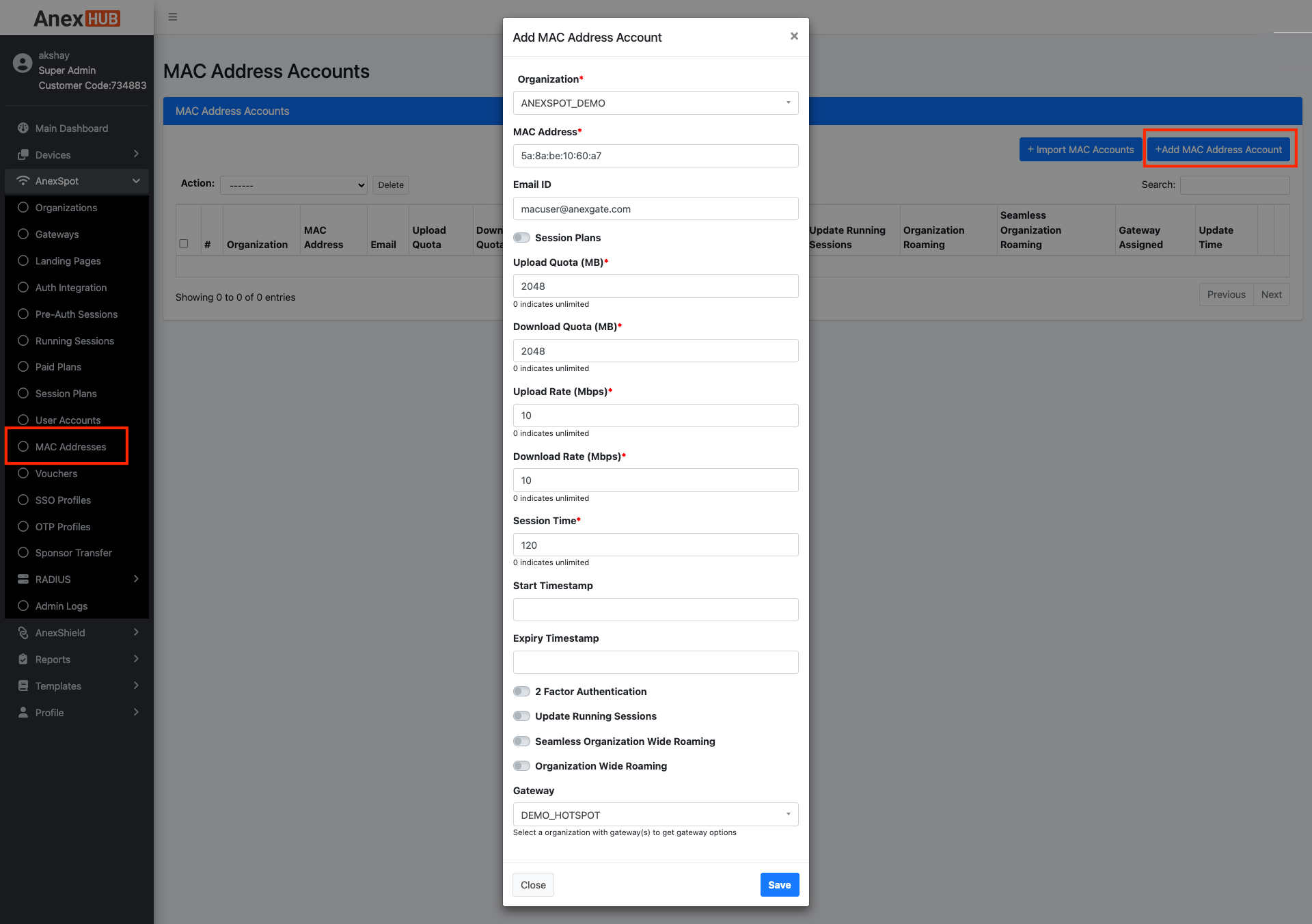
To configure MAC Address Based Authentication, Go to -
AnexSPOT-MAC Address- Click on
+Add MAC Address Accountbutton located at the Top Right Corner. - Configure
MAC Address Accountsby assigning respective networking parameters.
Following are the parameters needed to configure a Username based Auth under AnexSPOT RADIUS.
|
Elements |
Description |
|---|---|
| Organization | Select an organization for the RADIUS Client from the drop down menu. |
| MAC Address | Enter End device MAC Address to get Internet Access. |
| Enter Email ID of the User (Optional). | |
| Session Plans |
The Session plan are pre-configured network attribute templates which when enabled the user can be assigned a certain session plan which will save time of configured each network params manually. Toggle the session plan and choose any of the plans configured under Radius Session Plans shown in the drop-down. Note - If enabled, the network parameters like Upload/Download Quota/Rate gets hidden and session plans are displayed in the drop down. |
| Upload Quota (MB) | Specify Upload Quota limit in terms of mb, for the user after successful login. Once the user crosses the limit, they will be logged out of the session. |
| Download Quota (MB) | Specify Download Quota limit in terms of mb, for the user after successful login. Once the user crosses the limit, they will be logged out of the session. |
| Upload Rate (MBPS) | Specify Upload Bandwidth/Speed Rate limit in terms of mbps, for the user after successful login. Once the user crosses the limit, they will be logged out of the session. |
| Download Rate (MBPS) | Specify Download Bandwidth/Speed Rate limit in terms of mbps, for the user after successful login. Once the user crosses the limit, they will be logged out of the session. |
| Session Time (Minutes) | Specify Session limit in terms of minutes for the user after successful login. Once the user crosses the limit, they will be logged out of the session. |
| Password Expiry(Days) | Assign an interval period of days for the User Password to be considered as valid to login. Once the Password expires the user wont be able to use the credentials to get the access to the internet. |
| Bind MACS |
Enable the Bind MACs, to bind the mac address with the username. The number of MACs to be binded can be specified once the Bind MACs toggle key has been enabled. |
| Concurrent Active Sessions | Specify the number of Concurrent Active Sessions the user can have using the same login credentials simultaneously. |
| Number of Login Attempts | Number of Login attempts to be considered as valid till user gets invalid login exceed message. |
| Bar duration once login attempts are exceeded (Mins) | Amount of time in minutes to disallow the user from entering password after the invalid login attempts are exceeded. |
| Start/Expiry Timestamp | Assign the validity period for the Radius Account. The session plan will be valid for the given duration in terms of date and time. |
| Sponsor Validation | Enable Sponsor validation for user login where the user has to fill in the information which will be forwarded to registered sponsor. The Sponsor then will ACCEPT or DENY the internet access to the user. |
| Update Running Sessions | Enable this to modify Network parameters of the Running Sessions. |
| Seamless Organisation Wide Roaming | Enable Roaming from one Gateway to Another seamlessly without any interuption. Note - Both the Gateways should be configured under one Organisation. |
| Organization Wide Roaming | Enable Organisation Roaming for roaming clients from one Gateway to another. |
| Gateway | Select Gateways from drop down list individually. NOTE - Organisation Wide Roaming and Seamless Organisation Wide Roaming must be in Disabled state, |
| SAVE | Save the configuration. |
¶ Vouchers
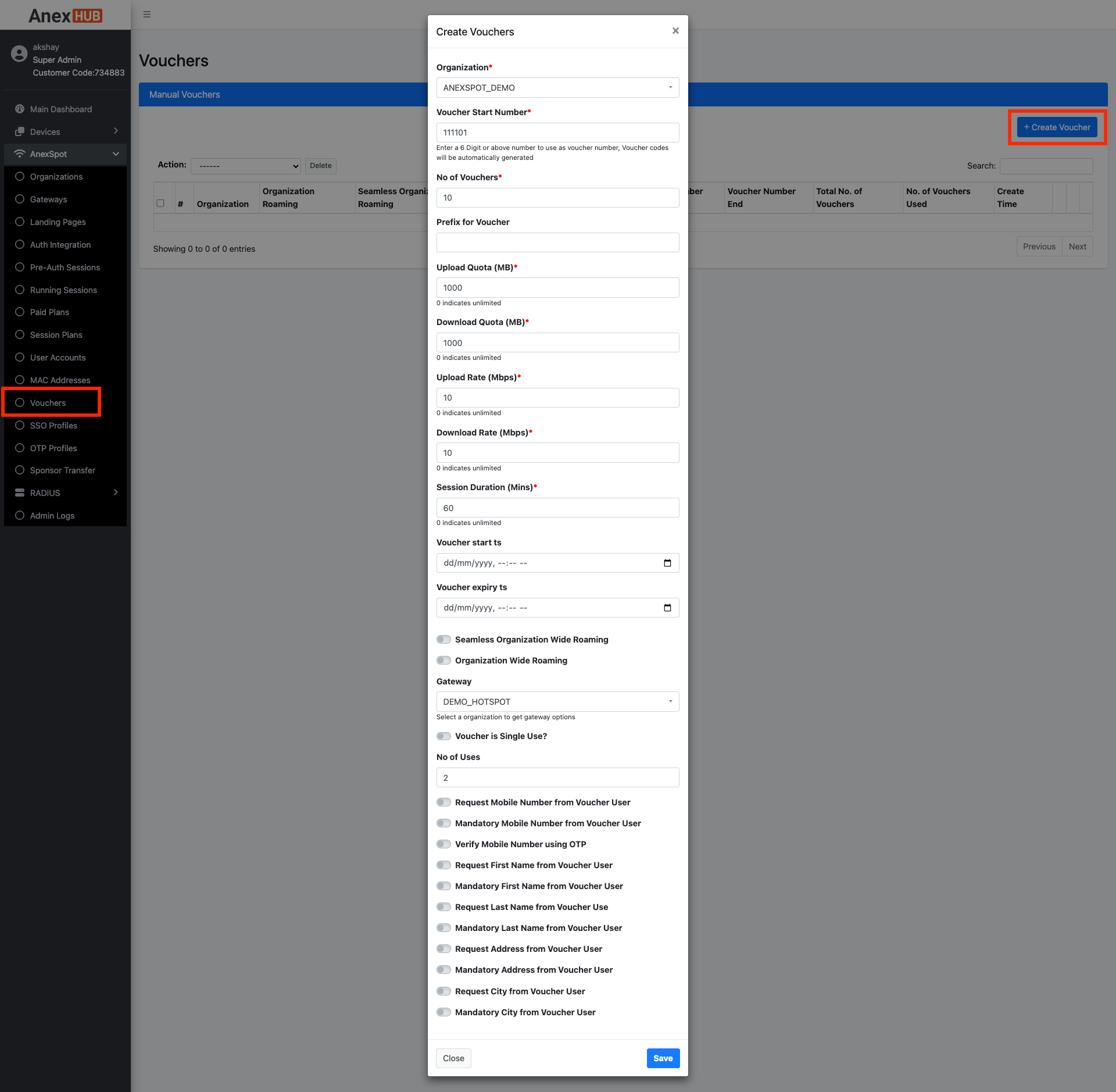
To configure Vouchers for Voucher Based Authentication, Go to -
AnexSPOT-Vouchers- Click on
+ Create Voucherbutton to create a Voucher.
Following are the parameters needed to configure Manual Vouchers under AnexSPOT Cloud.
|
Elements |
Description |
|---|---|
| Organisation | Select organisation from the drop down menu. |
| Voucher Start Number | Enter a minimum 6 digit voucher number to start with. (Eg: 100001) |
| No of Vouchers | Specify the number of vouchers to be generated. (Eg: 100) |
| Prefix for Voucher | Specify a prefix to the voucher if required (optional). |
| Upload Quota (MB) | Specify the Upload Quota in terms of MB. |
| Download Quota (MB) | Specify the Download Quota in terms of MB. |
| Upload Rate (Mbps) | Specify the Upload rate in terms of Mbps. |
| Download Rate (Mbps) | Specify the Upload rate in terms of Mbps. |
| Session Duration (Mins) | Specify the duration in minutes to be logged in from when the session has begun. |
| Voucher Start ts | Specify the Start date/time for the voucher to be valid within. |
| Voucher Expiry ts | Specify the Start date/time of the voucher to be valid within. |
| Sponsor Validation | Enable Sponsor validation for user login where the user has to fill in the information which will be forwarded to registered sponsor. The Sponsor then will ACCEPT or DENY the internet access to the user. |
| Seamless Organisation Wide Roaming | Enable Roaming from one Gateway to Another seamlessly without any interruption. Note - Both the Gateways must be under same Organisation. |
| Organisation wide Roaming | Select this for the voucher to be valid and user to be allowed on other Gateways to login which are associated with same organisation. |
| Gateway | Select the Gateway for the user to be allowed to login with a voucher only on that particular Gateway. |
| Voucher is single use? | Select this to allow the generated vouchers to be used only once to login. Once the user logs in the voucher must be in expired state. |
| No of Uses |
Assign the number for the same voucher to be used before it goes to expired state. NOTE - Do not enable |
| Request or Mandatory Field parameters |
Select the options from the list to request or mandatorise the user information before allowing the internet access to the user.
|
¶ Print Vouchers
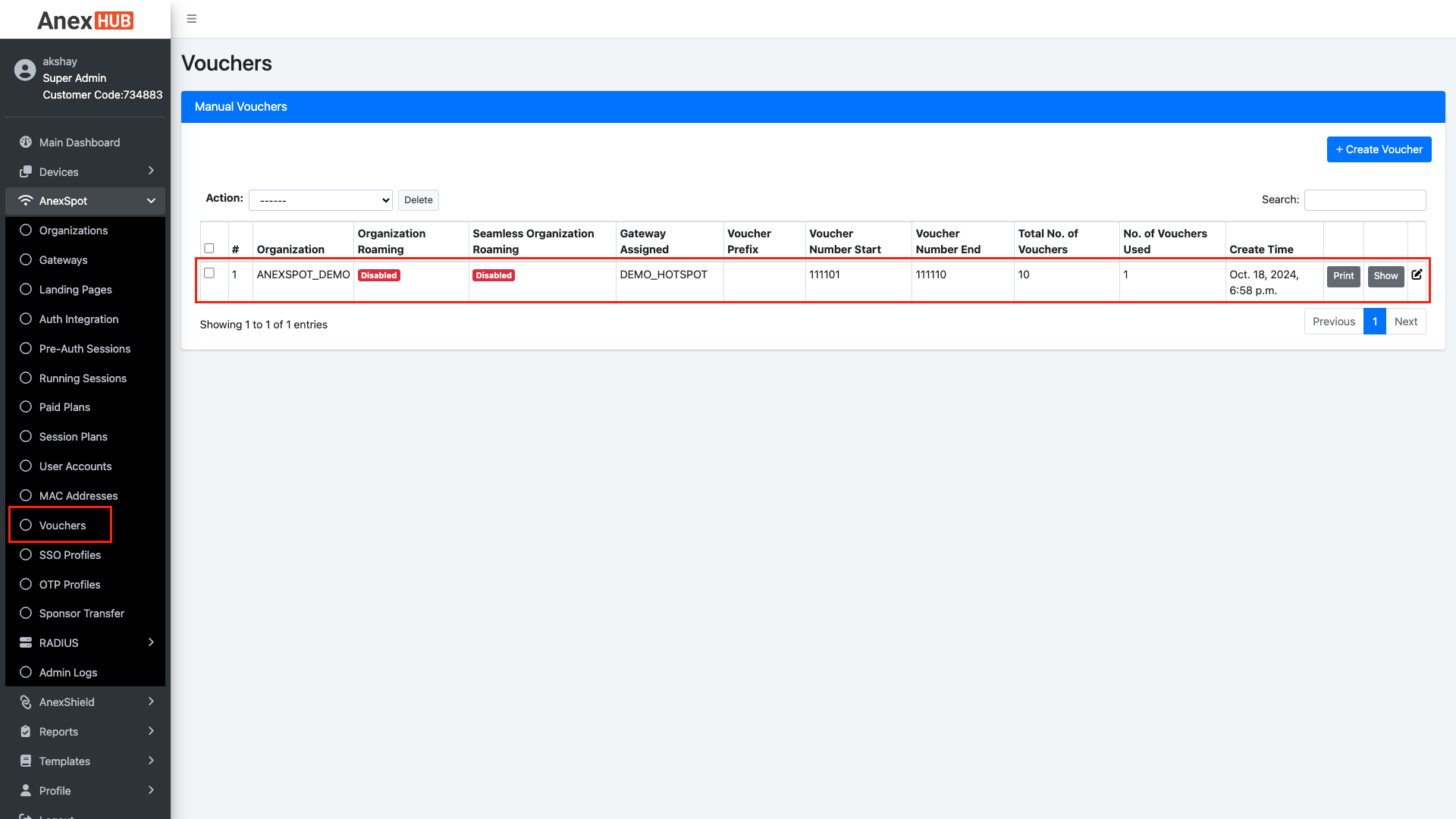
- To view the voucher credentials, click on
Printtab. - The
PrintTab will open another browser tab to display the Voucher along with the passphrase that have been generated randomly.
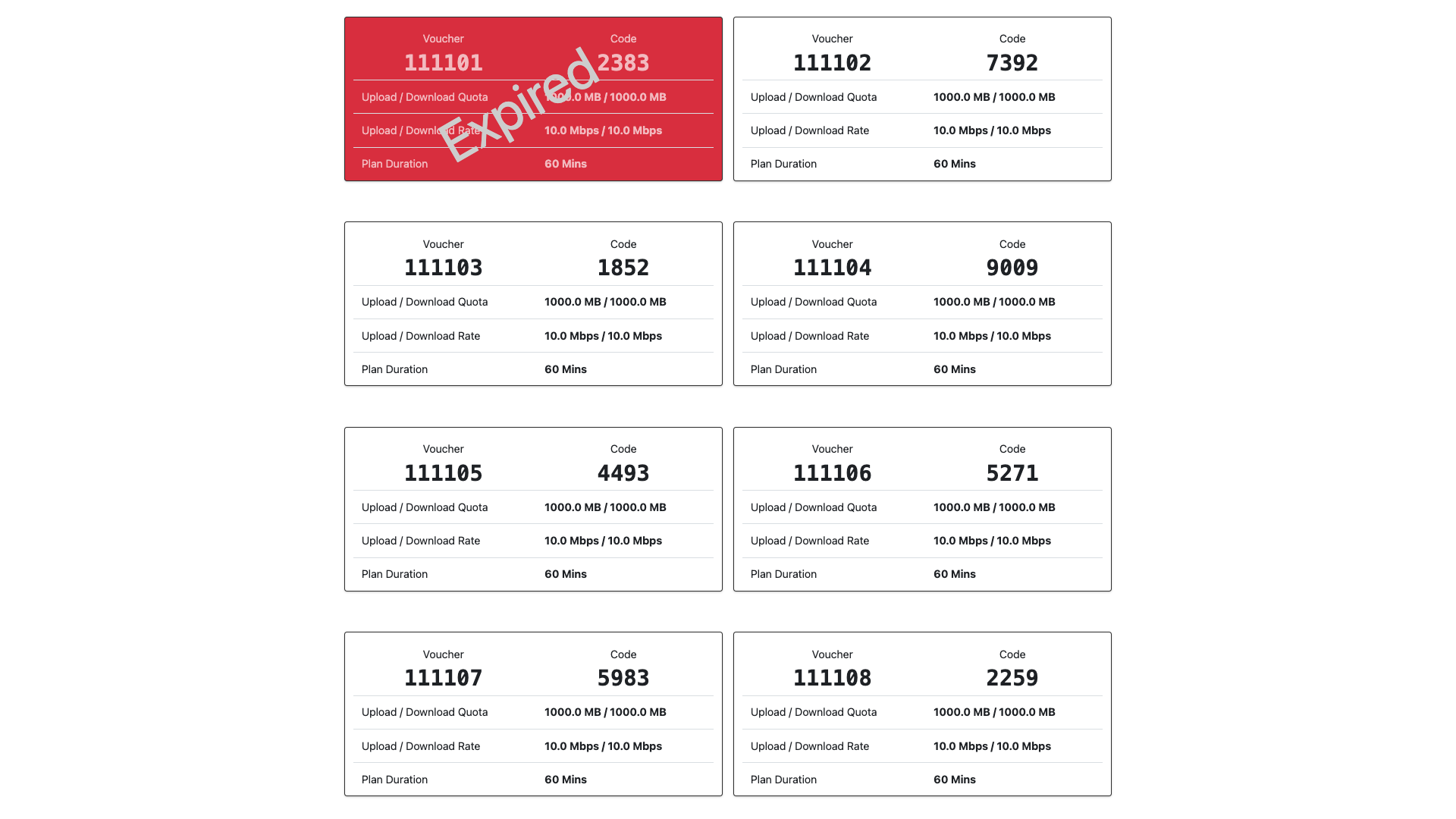
NOTE:
The voucher will not display password when the Verify Mobile number with OTP is selected in the Feature option while creating the voucher. In Captive Login Portal, user must enter the Voucher number and Mobile Number to get OTP and get authenticated from AnexSPOT and access network resources.
¶ Auth Integration
|
Elements |
Description |
|---|---|
| Auth Integration | Select a type of Auth Integration to be a Service Identity provider. The provided listed under Auth Integration are - Google, Mini Orange |
| SSO Customer Key | Enter the Single Sign on (SSO) Customer Key received from the Service Identity Provider. |
| SSO Client ID | Enter the Single Sign on (SSO) Customer Key received from the Service Identity Provider. |
| 2 Factor Authentication | Enable or Disable 2 factor Authentication after successful sign in using Auth Integration mode. |
| SAVE | Save the configuration. |
¶ SSO Profiles
SSO Profile is configured for the user to be authenticated by providing either a Google Mail address by clicking on Login to Google displyed on the Login Portal Page. Once, the user clicks on Login to Google , The user will get redirected to google workspace which will act as Identity Service providers to authenticate the users. The SSO profile has to be configured in order to get network policies parameters once the user logins with SSO option.
- To configure SSO Profiles, Go to
AnexSPOT - Auth Integration. - For Google Workspace Authentication, Add a Google Client ID under SSO client ID and secret key under SSO Customer key provided by the Google Identity Service Provider.
- Go to
AnexSPOT - SSO Profiles - Click on
+Add Profilelocated at the top right end corner above Search Filter. - Configure
SSO Profileby assigning required Network policy attributes as parameters mentioned below -
| Element | Description |
|---|---|
| Profile Status | Enable or Disable the SSO Profile. |
| Organization | Select an organization for the SSO Profile from the drop down menu. |
| Upload Quota (MB) | Specify Upload Quota limit in terms of mb, for the user after successful login. Once the user crosses the limit, they will be logged out of the session. |
| Download Quota (MB) | Specify Download Quota limit in terms of mb, for the user after successful login. Once the user crosses the limit, they will be logged out of the session. |
| Upload Rate (MBPS) | Specify Upload Bandwidth/Speed Rate limit in terms of mbps, for the user after successful login. Once the user crosses the limit, they will be logged out of the session. |
| Download Rate (MBPS) | Specify Download Bandwidth/Speed Rate limit in terms of mbps, for the user after successful login. Once the user crosses the limit, they will be logged out of the session. |
| Session Duration (Minutes) | Specify Session limit in terms of minutes for the user after successful login. Once the user crosses the limit, they will be logged out of the session. |
| Update Running Sessions | Enable this to modify Network parameters of the Live successful logged in AnexSPOT Running Sessions. |
| Authentication Mode |
Enable Authentication from Service Identity Providers as listed below -
|
| Sponsor Validation | Enable Sponsor validation for user login where the user has to fill in the information which will be forwarded to registered sponsor. The Sponsor then will ACCEPT or DENY the internet access to the user. |
| Seamless Organisation Wide Roaming | Enable Roaming from one Gateway to Another seamlessly without any interruption. Note - Both the Gateways must be under same Organisation. |
| Organisation wide Roaming | Select this for the voucher to be valid and user to be allowed on other Gateways to login which are associated with same organisation. |
| Gateway |
Select the Gateway for the user to be allowed to login with a voucher only on that particular Gateway. Note - Organisation Wide Roaming and Seamless Organisation Wide Roaming must be in |
| SAVE | Save the configuration. |

¶ OTP Profiles
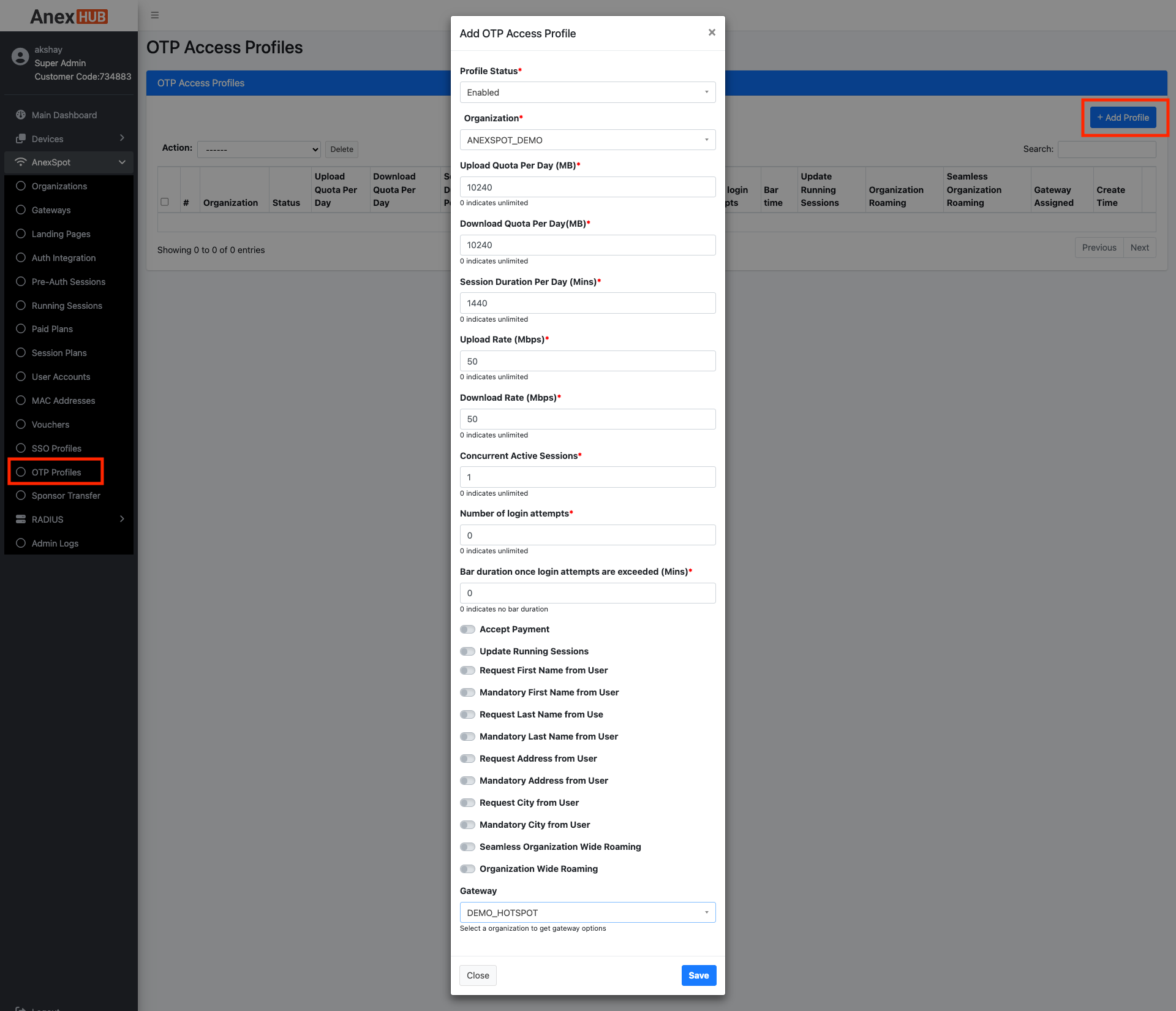
OTP Profile is configured for the user to be authenticated by providing Mobile number on the Login Portal Page. Once, the user inputs Mobile Number and submits the request. The user will get an OTP message, which they have to input under OTP field in order to get successfully authenticated from AnexSPOT Cloud.
- To configure OTP Profiles, Go to
AnexSPOT - OTP Profiles - Click on
+Add Profilelocated at the top right end corner above Search Filter. - Configure OTP Profile by assigning required Network policy attributes as parameters mentioned below -
| Element | Description |
|---|---|
| Profile Status | Enable or Disable the OTP Profile Status. |
| Organization | Select an organization for the OTP Profile from the drop down menu. |
| Upload Quota (MB) | Specify Upload Quota limit in terms of mb, for the user after successful login. Once the user crosses the limit, they will be logged out of the session. |
| Download Quota (MB) | Specify Download Quota limit in terms of mb, for the user after successful login. Once the user crosses the limit, they will be logged out of the session. |
| Session Duration (Minutes) | Specify Session limit in terms of minutes for the user after successful login. Once the user crosses the limit, they will be logged out of the session. (Max upto 1440mins) |
| Upload Rate (MBPS) | Specify Upload Bandwidth/Speed Rate limit in terms of mbps, for the user after successful login. Once the user crosses the limit, they will be logged out of the session. |
| Download Rate (MBPS) | Specify Download Bandwidth/Speed Rate limit in terms of mbps, for the user after successful login. Once the user crosses the limit, they will be logged out of the session. |
| Concurrent Active Sessions | Specify the number of concurrent active sessions to be simultaneously connected using same mobile number. |
| Number of Login Attempts | Enter number of Login attempts where user has to input the credentials. Once crossed the threshold, the user will be blocked from initiating request for certain time period mentioned under Bar Duration. |
| Bar Duration once login attempts are exceeded (Mins) | Enter a bar duration in Mins where user gets blocked from initiating request after failing the number of Login Attempts. |
| Accept Payment | Enable the payment feature where user will be provided a Payment Gateway Page displaying various paid session plans to opt from to get authenticated and access internet connectivity. |
| Sponsor Validation | Enable Sponsor validation for user login where the user has to fill in the information which will be forwarded to registered sponsor. The Sponsor then will ACCEPT or DENY the internet access to the user. |
| Request / Mandatory User Information | Enable set of toggle keys enabling the user to input First name, Last Name, Address, City, etc either voluntarily or mandatorily. |
| Seamless Organisation Wide Roaming | Enable Roaming from one Gateway to Another seamlessly without any interruption. Note - Both the Gateways must be under same Organisation. |
| Organisation wide Roaming | Select this for the voucher to be valid and user to be allowed on other Gateways to login which are associated with same organisation. |
| Gateway |
Select the Gateway for the user to be allowed to login with a voucher only on that particular Gateway. Note - Organisation Wide Roaming and Seamless Organisation Wide Roaming must be in |
| SAVE | Save the configuration. |
¶ Admin Logs
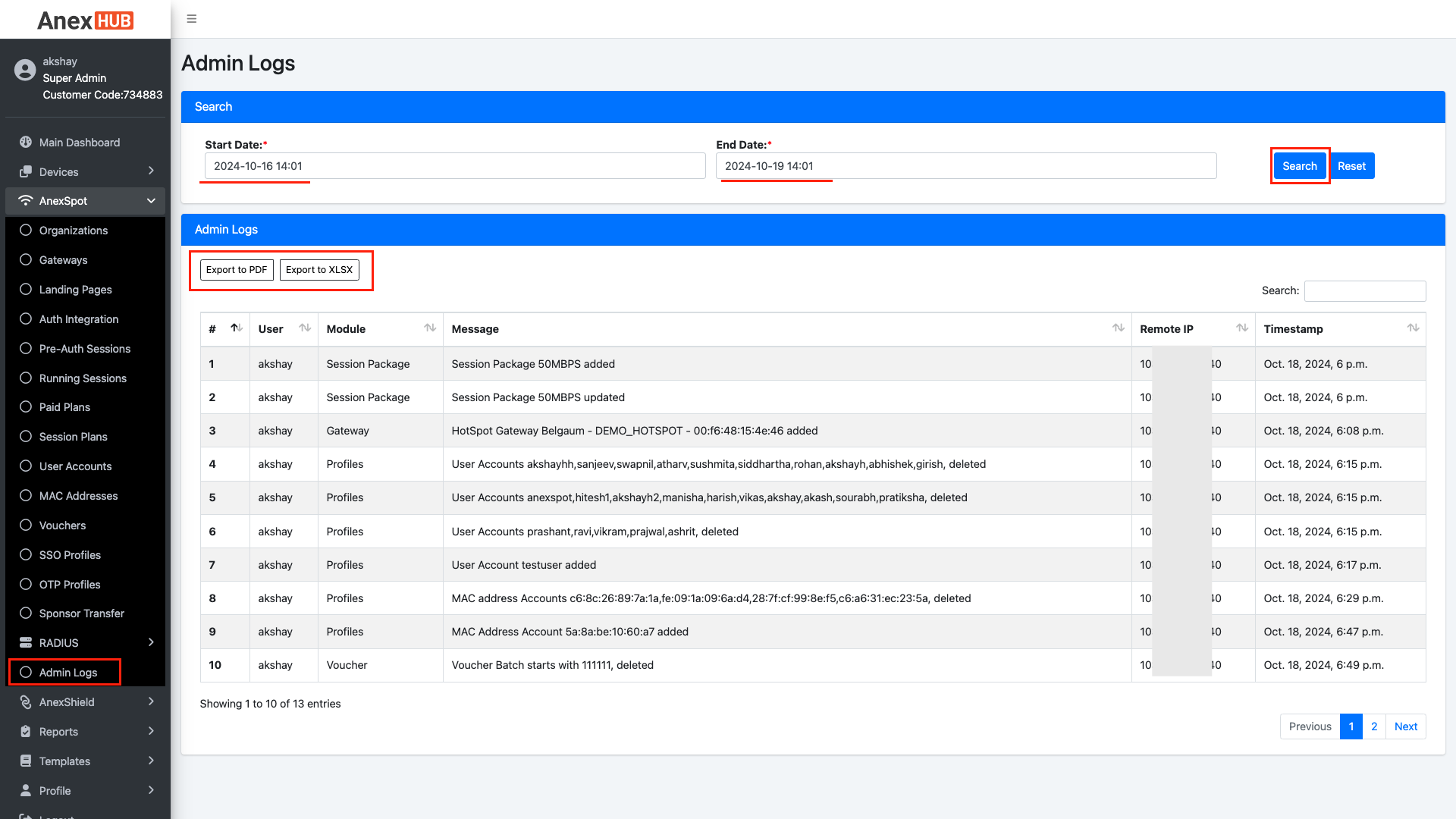
Admin Logs maintain the activity logs of the changes related to addition and deletion of any configuration under AnexSPOT by the admins.
To check Admin Logs,
- Go to
AnexSpot-Admin Logs. - Under Search section, enter Start and End Date/Time range.
- Click on
Search.
Note - Searched Admin Logs can also be exported in the form of PDF or excel file.
¶ REPORTS
¶ System Logs
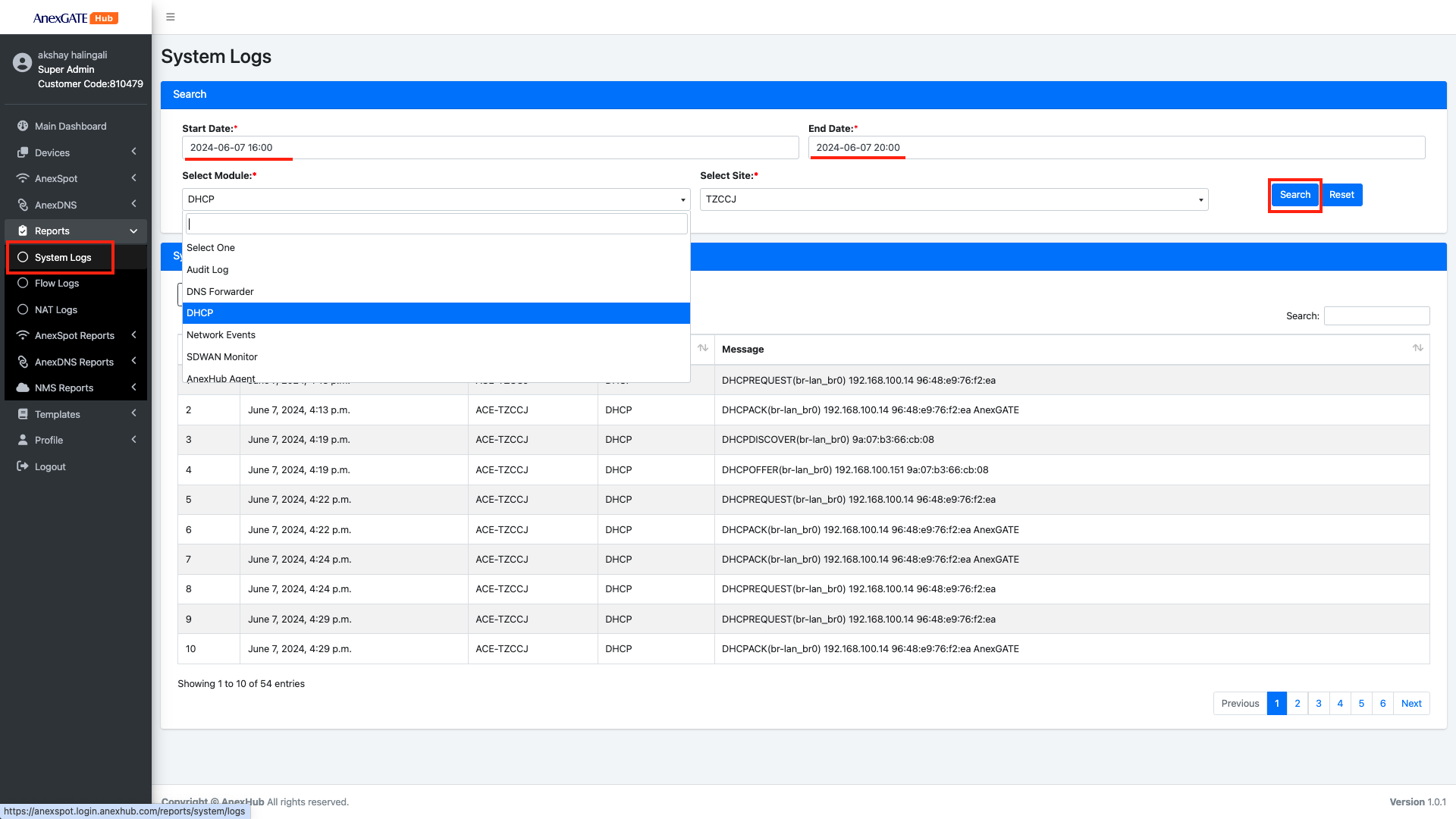
System Logs are device Logs generated within the AnexGATE Appliance.
For System logs,
- Go to
Reports-System Logs. - Enter
Start and End Date/Timeof the system logs to be fetched. - Select the
Modulefor the required System Logs from drop-down list. - Select the
Site IDof the AnexSPOT ACE Router Device. - Click on
Search.
System Logs drop-down module consists of following events -
| Event | Description |
|---|---|
| Audit Logs | Provides logs generated for successful or unsuccessful login attempt. |
| DHCP | Displays Logs generated for DHCP by the clients under the LAN network of the AnexGATE Appliance. |
| Network Events | Displays Logs for Network Up/Down events that are connected under AnexGATE Appliance physically. |
| SD WAN Monitor | Displays Logs for SD WAN Multi WAN related events. |
| AnexHUB Agent | Display Logs for AnexHUB Agent events. |
| Tethering Detection | Displays Possible Tethering Detection if the Block Connection Tethering has been enabled under AnexSPOT Client. |
¶ Flow Logs
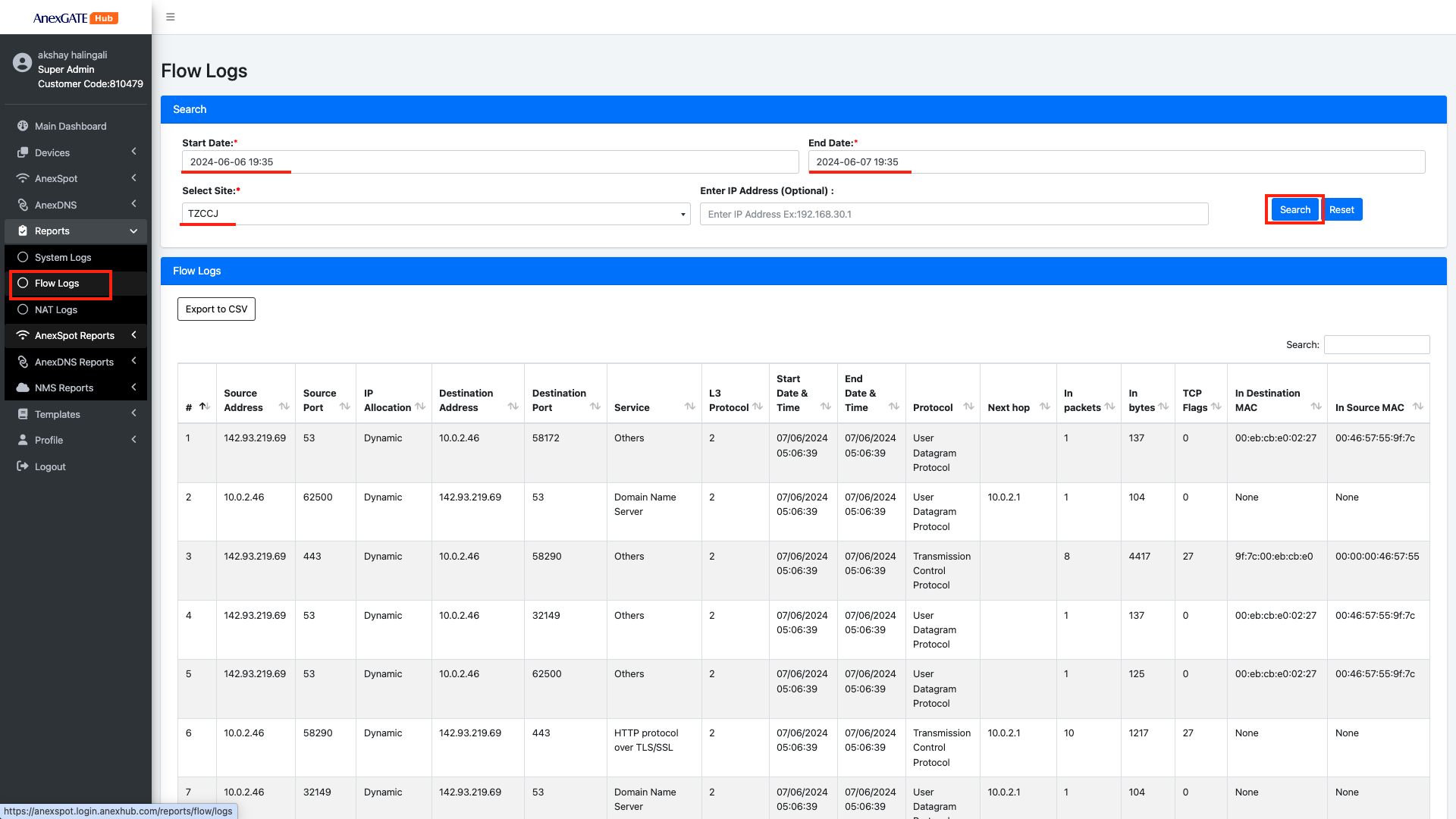
Flow logs provide detailed records of network traffic flows involving complete session/connections established.
Flow logs displays various data points in the network communication as below -
| Element | Description |
|---|---|
| Source Address | Source IP Address of the Connection established during the Network IP Flow. |
| Source Port | Source Port of the Connection established during the Network IP Flow |
| IP Allocation | IP Allocation method of the received IP for the end client. |
| Destination Address | Destination Address of the Connection established during the Network IP Flow. |
| Destination Port | Destination Port of the Connection established during the Network IP Flow. |
| Service | Service detected for the Network IP Flow. |
| L3 Protocol | Protocol number of the Connection Network IP Flow. |
| Start / End Date & Time | Start and End Date & Time of the Connection Network IP Flow. |
| Protocol | Transport Protocol used during the Network IP Flow. |
| Next Hop | Next Hop used for the Connection during the network IP Flow for the connection. |
| In Packets | Number of Inward Packets received during the Network IP Flow for the connection. |
| In Bytes | Number of Inbound Bytes received during the Network IP Flow for the connection. |
| TCP Flags | Displays collective of all the TCP Flags connections seen for the Network IP Flow. |
| In Destination MAC | Incoming Destination MAC Address. |
| In Source MAC | Incoming Source MAC Address. |
¶ NAT Logs
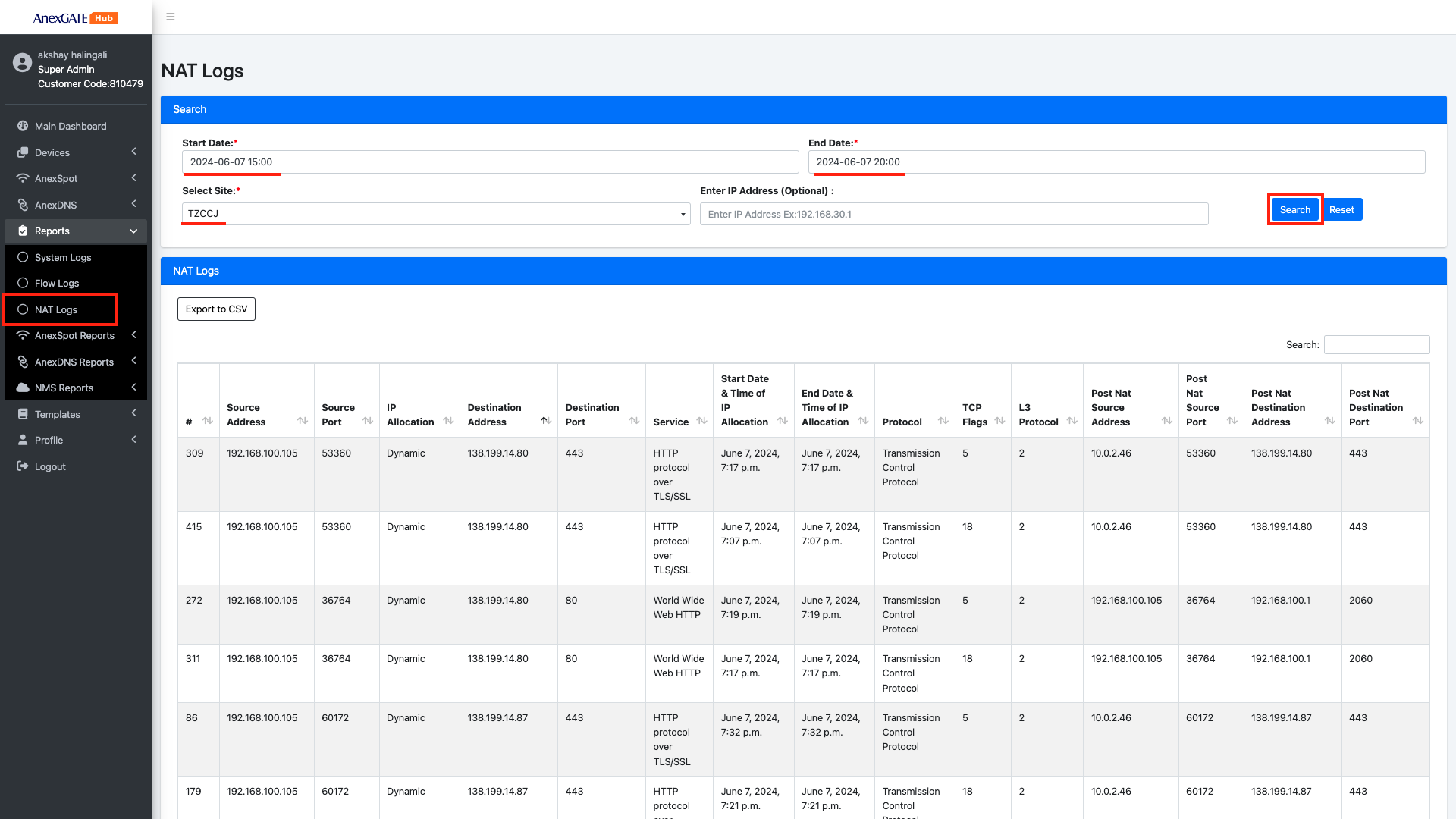
NAT (Network Address Translation) logs provide detailed records of network traffic involving translated IP addresses.
The logs typically mainly include parameters mentioned below -
| Element | Description |
|---|---|
| Source Address | Source IP Address of the NAT Connection |
| Source Port | Source Port Address of the NAT Connection |
| IP Allocation | IP Allocation method for the IP received at the end client. |
| Destination Address | Destination IP address of the NAT Connection. |
| Destination Port | Destination Port Address of the NAT Connection. |
| Service | Service requested by the client during the Connection flow. |
| Start / End Date & Time | Start and End Date & Time of the Connection Network Connection Flow during NAT. |
| Protocol | Layer 4 Transport Protcol used during the Connection Flow. |
| TCP Flags | Displays collective of all the TCP Flags connections seen for the Network IP Flow. |
| L3 Protocol | Protocol number of the Connection Network IP Flow. |
| Post NAT Source Address | Source IP address Post NAT. |
| Post NAT Source Port | Source Port Post NAT |
| Post NAT Destination Address | Destination IP Address Post NAT. |
| Post NAT Destination Port | Destination IP Address Post NAT |
¶ AnexSpot Reports
¶ AUTH Logs
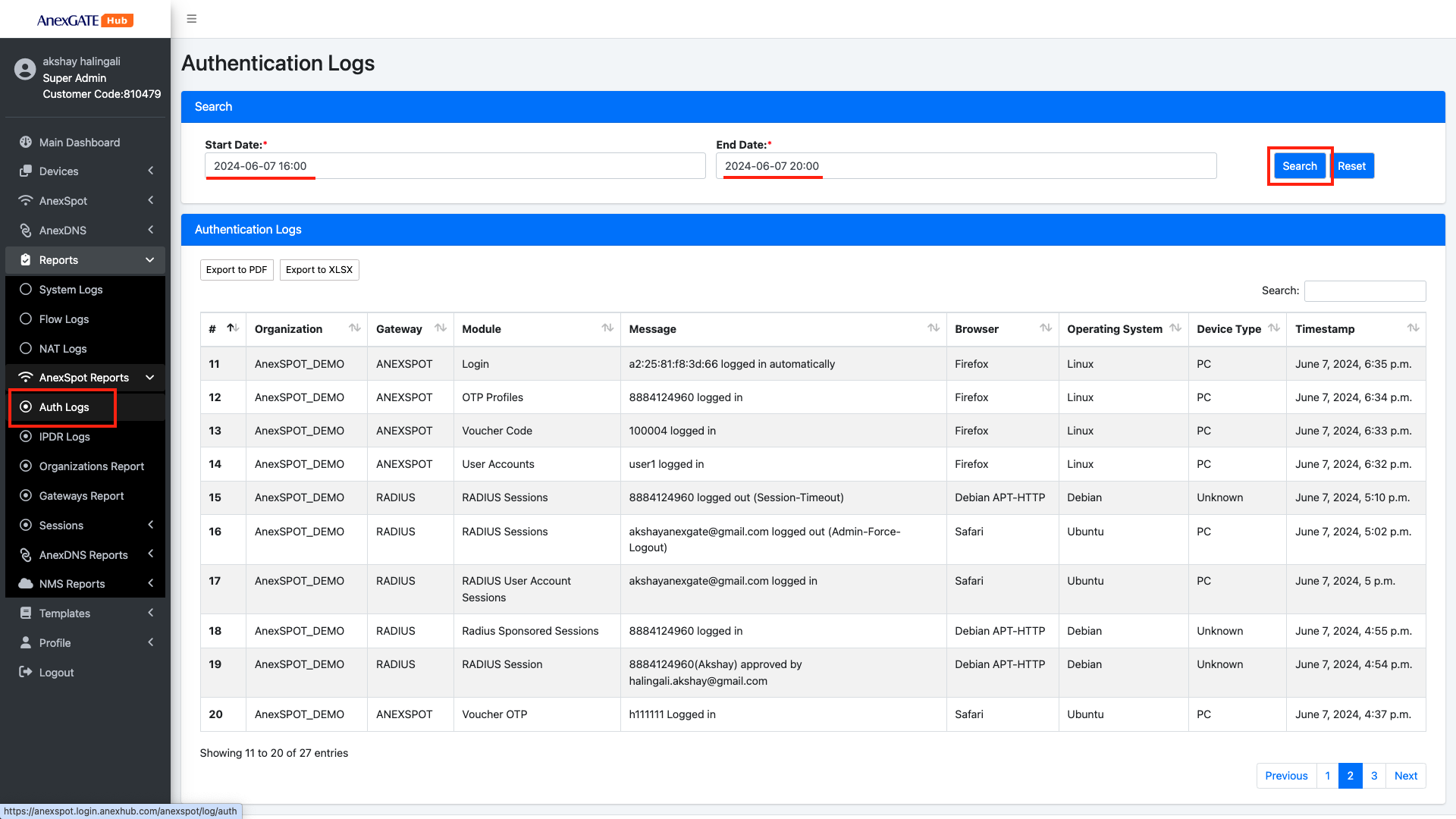
Auth Logs show the Authentication mode used for Successful Session Login, Session Logouts, Approving or Denying Sponsor Approved Authentication with respect to their Organisation and Gateways and brief info about the end device used for network access activity.
¶ Auth Logs
Auth logs maintain the activity logs for the User Authentication and Authorisation on AnexSPOT.
The old logs can be retrieved by specifying Start and End Date/Time and click on Search button.
NOTE - Once Logs have been generated with a specfied date/time interval, the UI only displays first 1000 entries. To view all the logs, download the logs in terms of given Downloadable Format.
¶ IPDR Logs
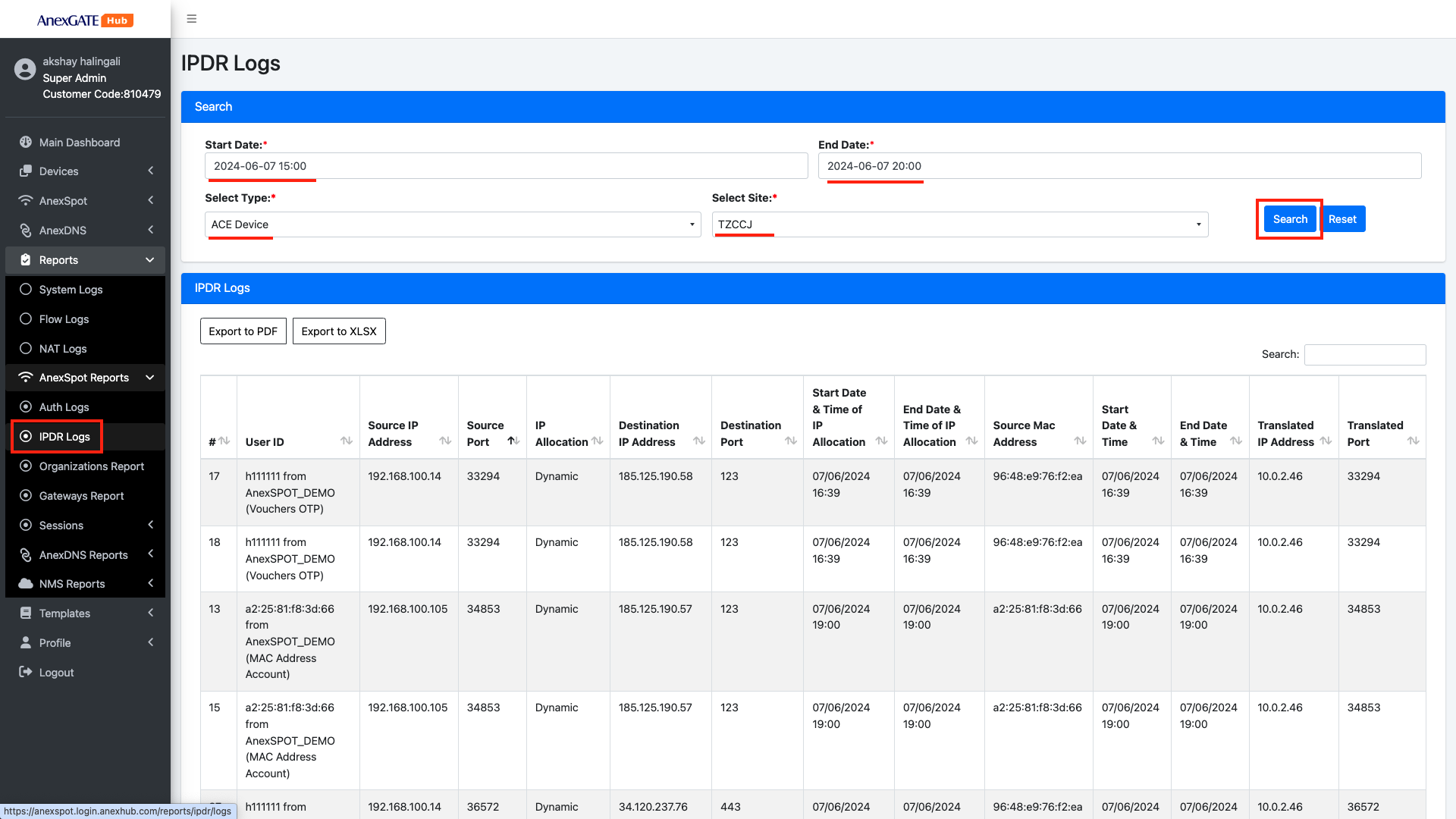
IPDR (Internet Protocol Detail Record) logs are records that capture detailed information about internet protocol (IP) traffic on a network.
These logs typically include parameters mentioned below:
| Element | Description |
|---|---|
| User ID | User Identification after successful authentication with Auth Type. |
| Source IP Address | Source IP Address of the end client device. |
| Source Port | Source Port Address of the end client device. |
| IP Allocation | IP Allocation method for the IP received to the end client device. |
| Destination Address | Destination IP Address of the Connection established on the WAN. |
| Destination Port | Destination Port of the Connection established on the WAN. |
| Start/End Time of IP Allocation | Start and End Time of the IP Allocated for the connection flow. |
| Source MAC Address | Source MAC Address of the end client device. |
| Start/End Date & Time | Start and End date and time of the Connection established for the Network IP Flow. |
| Translated IP Address | Translated IP Address of the end device Post NAT. |
| Translated IP Port | Translated Port of the end device Post NAT. |
¶ Organization Report
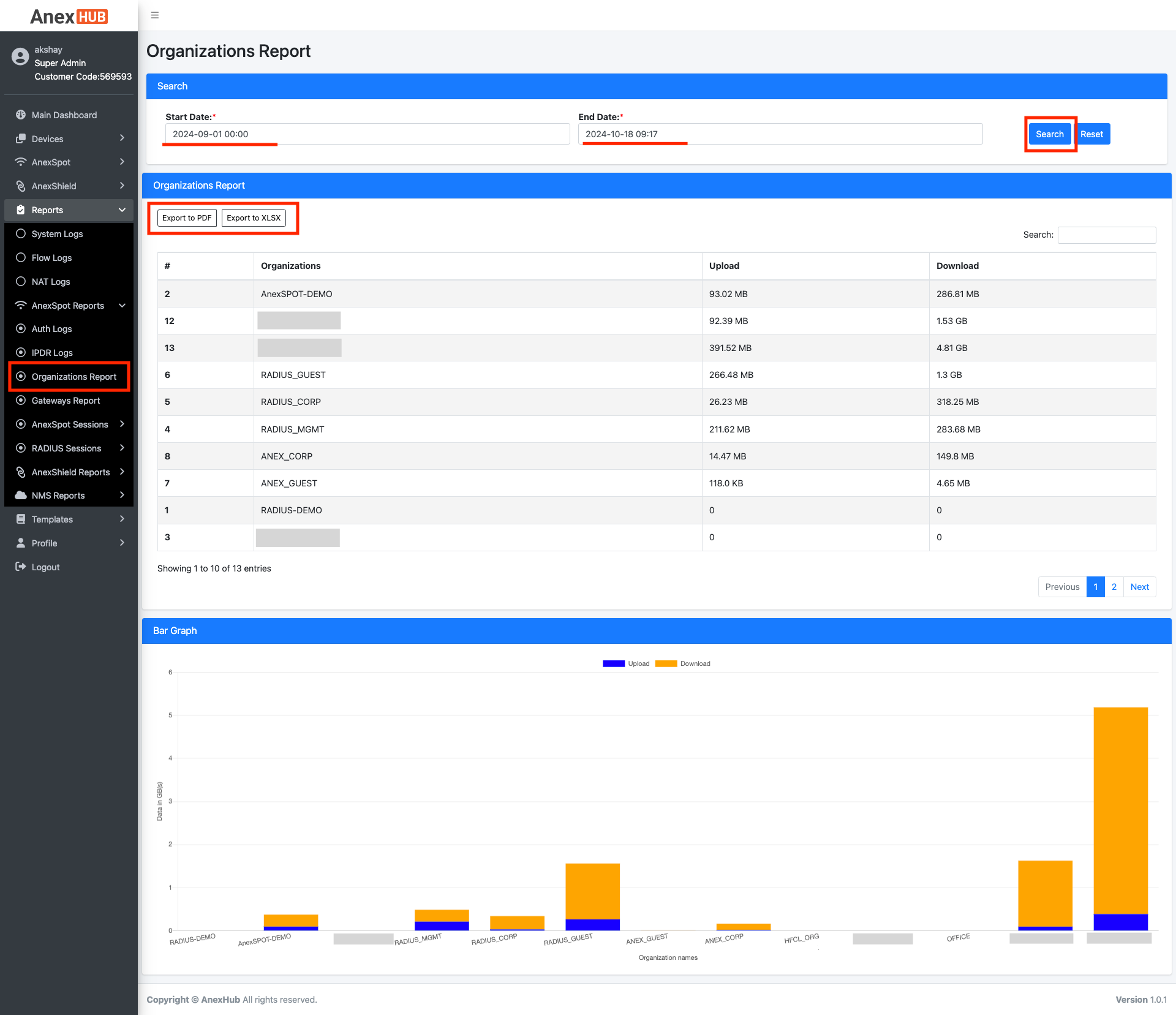
Organization Report provides the statistics of data network usage and displays in a graphical representation on basis of Organisations.
¶ Gateways Report
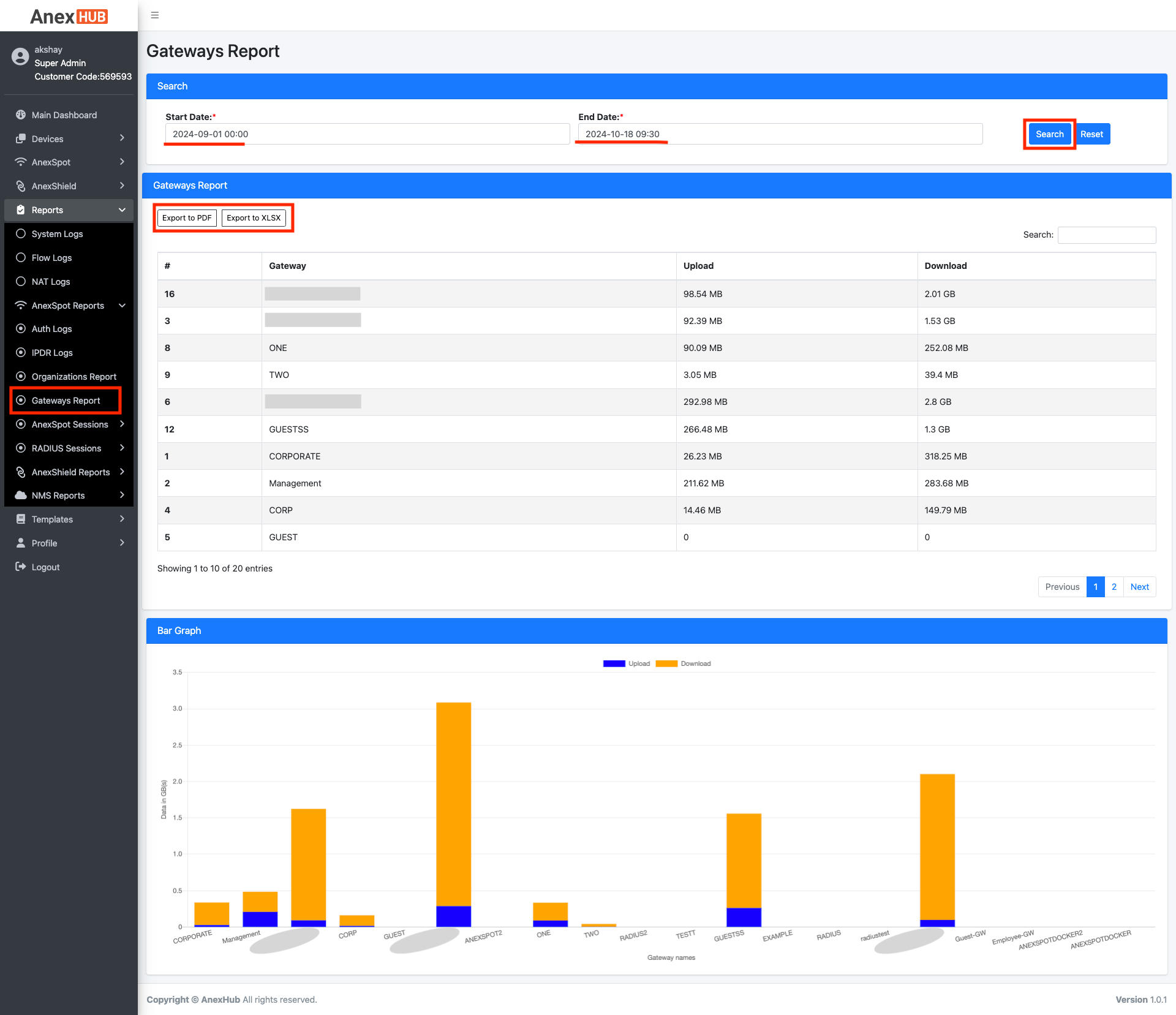
Gateways Report provides the statistics of data network usage and displays in a graphical representation on basis of Gateways configured under Organisations.
¶ AnexSpot Sessions
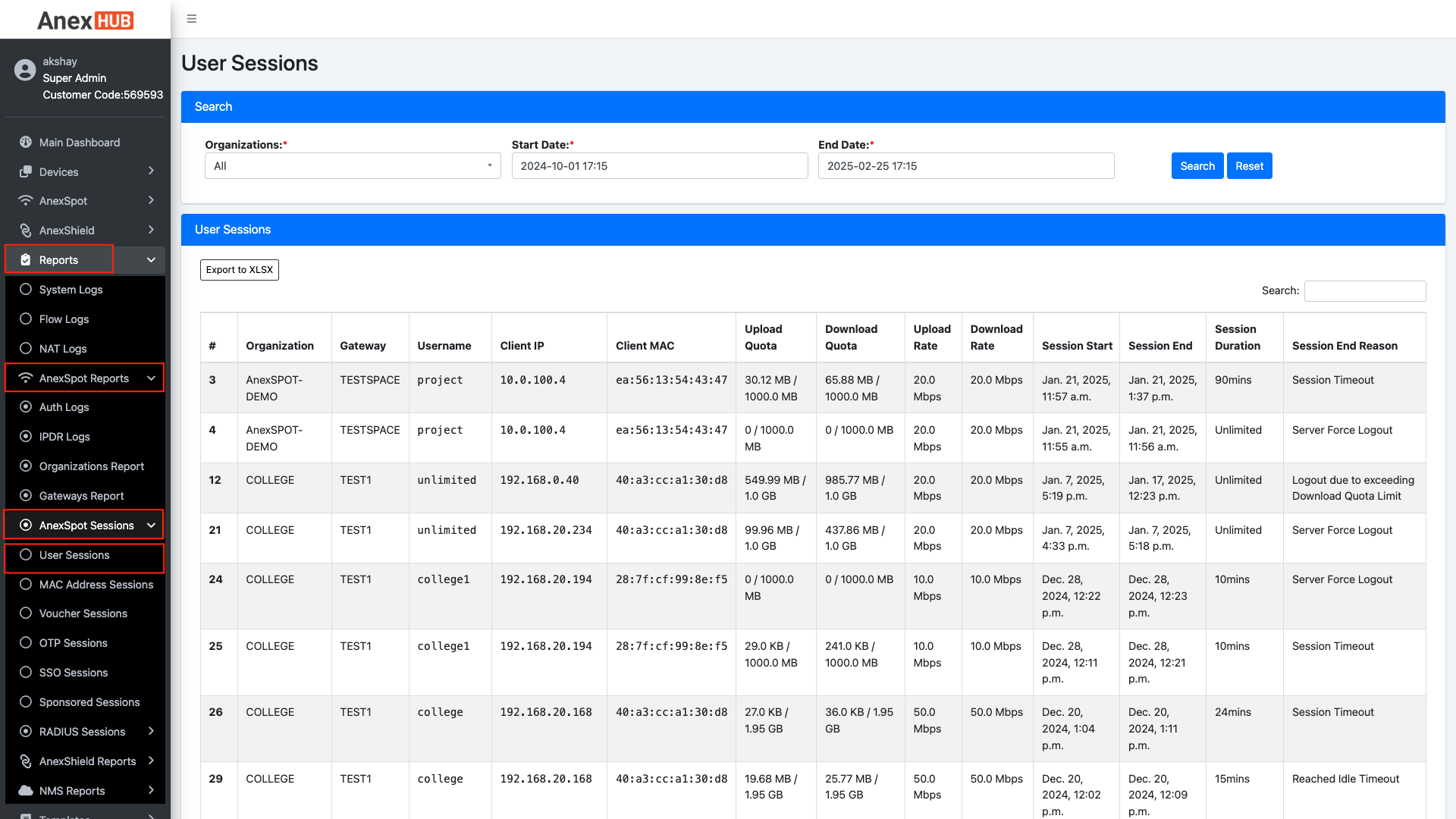
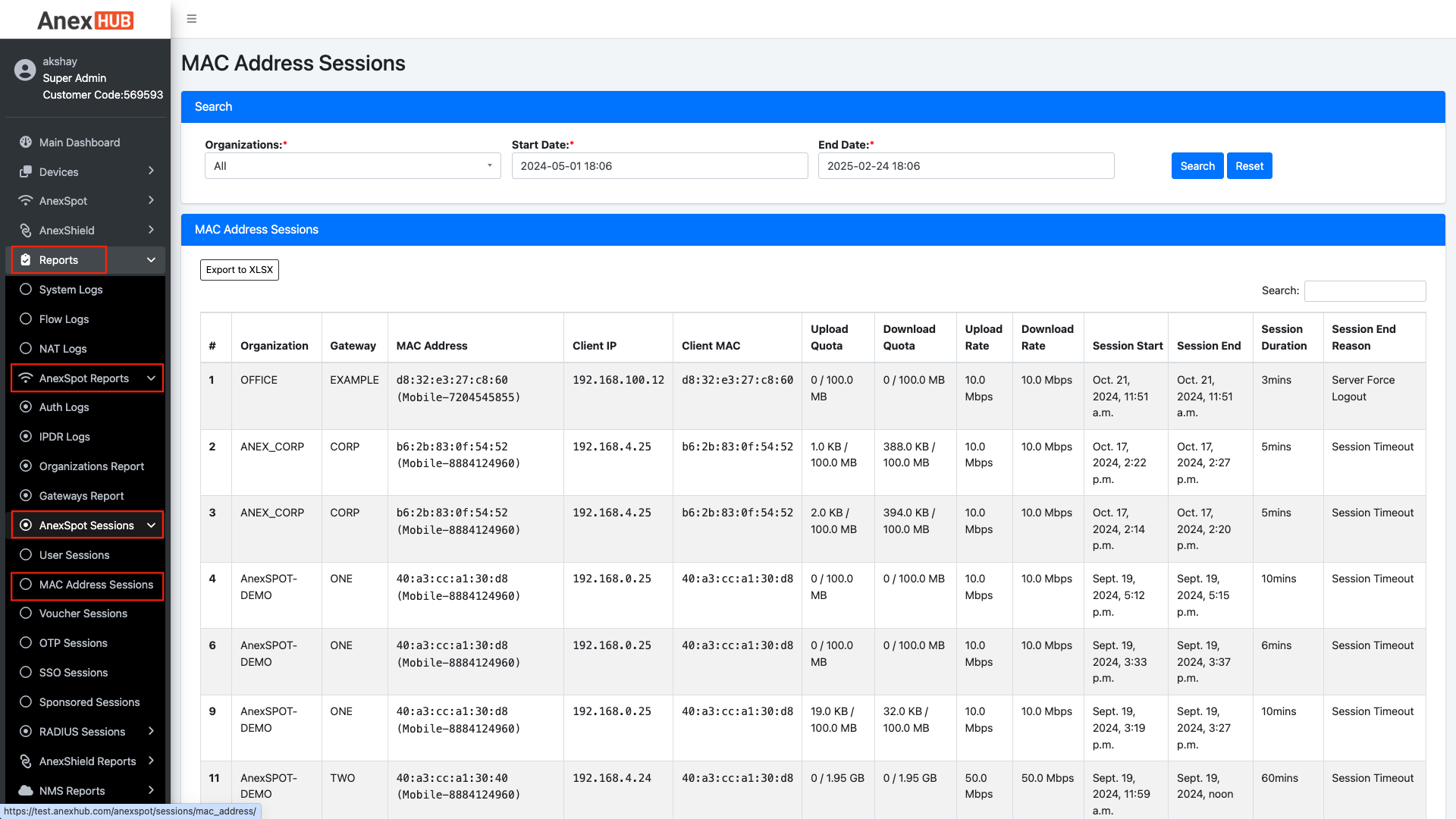
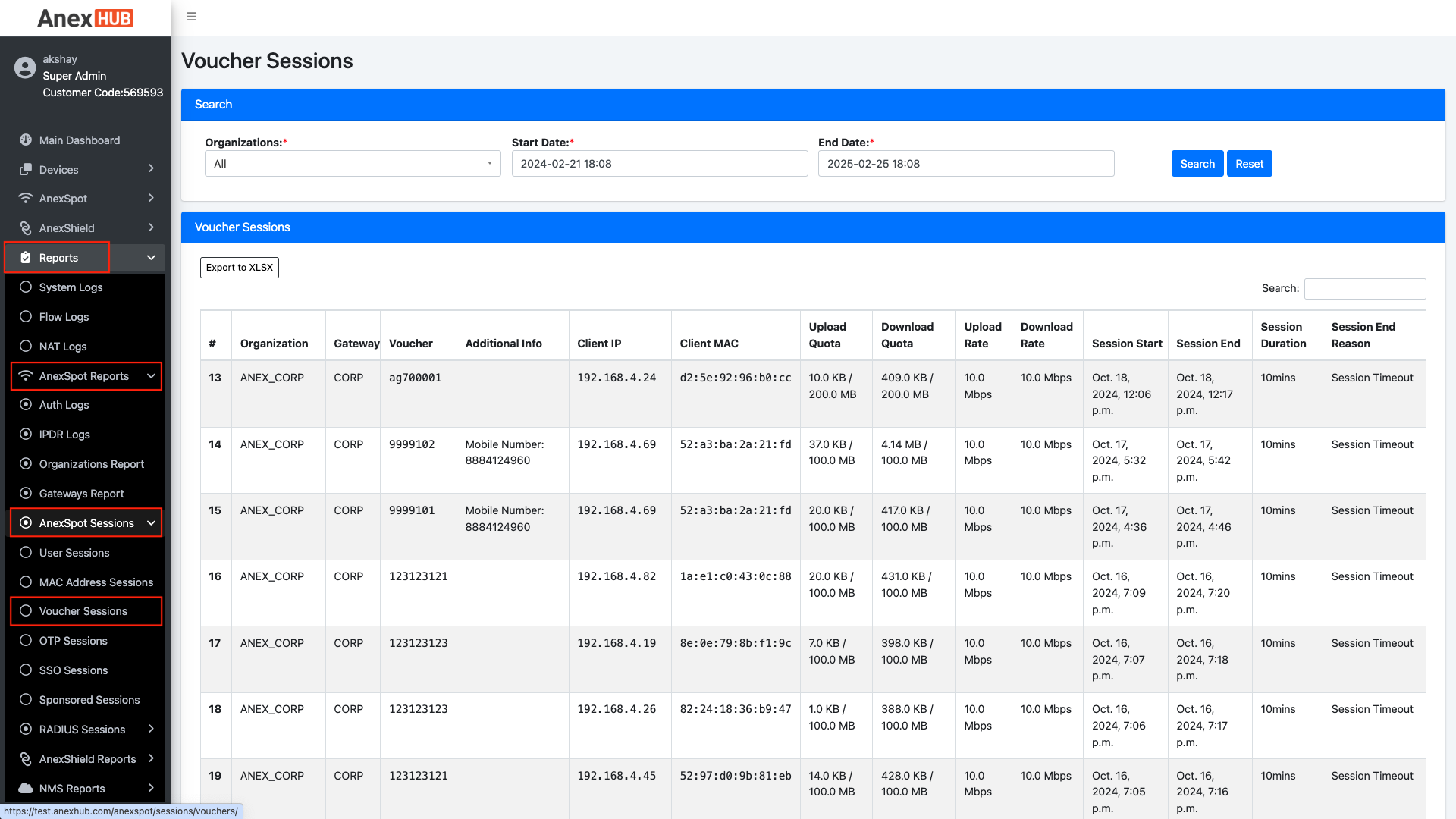
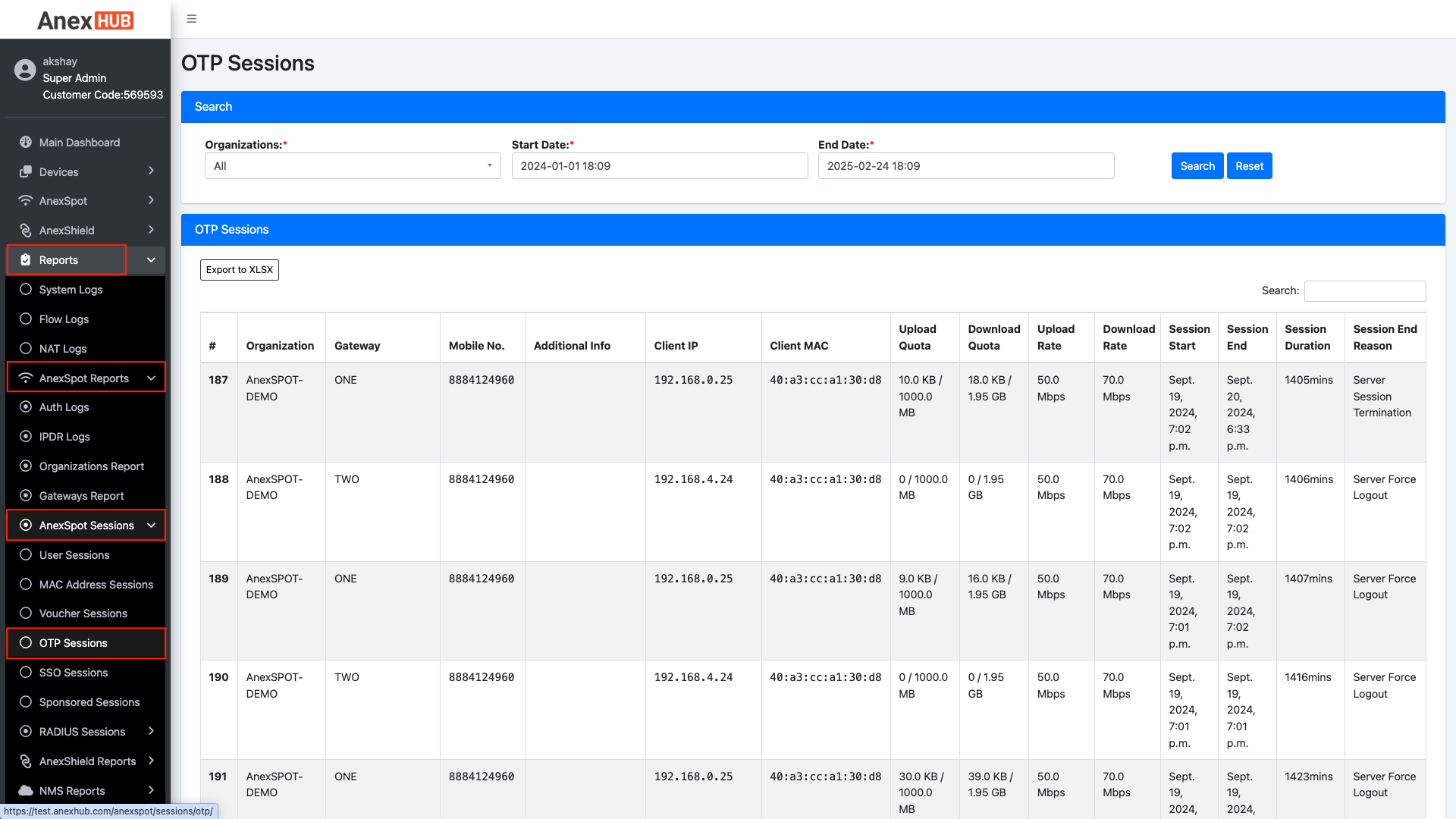
AnexSpot Sessions consists of logged out session reports of various Authenticated modes as listed - User Sessions, MAC Address Sessions, Voucher Sessions, OTP Sessions, SSO Sessions, Sponsored Sessions.
These reports contain client information and usage of network by the logged out clients.
¶ User Sessions
| Element | Description |
|---|---|
| Organization | Displays the Organisation name of the user sessions. |
| Gateway | Displays the Gateway name of the user sessions. |
| Username | Displays the client username of the logged out user sessions. |
| Client IP | Displays the client IP address of the logged out user sessions. |
| Client MAC | Displays the client mac address of the logged out user sessions. |
| Upload Quota (MB) | Displays the Upload quota usage of the logged out user sessions. |
| Download Quota (MB) | Displays the Download quota usage of the logged out user sessions. |
| Upload Rate (MBPS) | Displays the Upload rate assigned to the logged out user sessions. |
| Download Rate (MBPS) | Displays the Download rate assigned to the logged out user sessions. |
| Session Start | Displays date and time of the session start of the user sessions. |
| Session End | Displays date and time of the session end of the user sessions. |
| Session Duration | Displays total session duration of the logged out user sessions. |
| Session End Reason | Displays reason for the session end of the logged out user sessions. |
¶ MAC Address Sessions
| Element | Description |
|---|---|
| Organization | Displays the Organisation name of the mac address sessions. |
| Gateway | Displays the Gateway name of the mac address sessions. |
| MAC Address |
Displays the client mac address of the logged out user sessions. Note - Mobile numbers are also displayed if 2 factor authentication is enabled for mac address accounts. |
| Client IP | Displays the client IP address of the logged out mac address sessions. |
| Client MAC | Displays the client mac address of the logged out mac address sessions. |
| Upload Quota (MB) | Displays the Upload quota usage of the logged out mac address sessions. |
| Download Quota (MB) | Displays the Download quota usage of the logged out mac address sessions. |
| Upload Rate (MBPS) | Displays the Upload rate assigned to the logged out mac address sessions. |
| Download Rate (MBPS) | Displays the Download rate assigned to the logged mac address user sessions. |
| Session Start | Displays date and time of the session start of the mac address sessions. |
| Session End | Displays date and time of the session end of the mac address sessions. |
| Session Duration | Displays total session duration of the logged out mac address sessions. |
| Session End Reason | Displays reason for the session end of the logged out user sessions. |
¶ Voucher Sessions
| Element | Description |
|---|---|
| Organization | Displays the Organisation name of the voucher sessions. |
| Gateway | Displays the Gateway name of the voucher sessions. |
| Voucher | Displays the client voucher number of the logged out voucher sessions. |
| Client IP | Displays the client IP address of the logged out voucher sessions. |
| Client MAC | Displays the client mac address of the logged out voucher sessions. |
| Upload Quota (MB) | Displays the Upload quota usage of the logged out voucher sessions. |
| Download Quota (MB) | Displays the Download quota usage of the logged out voucher sessions. |
| Upload Rate (MBPS) | Displays the Upload rate assigned to the logged out voucher sessions. |
| Download Rate (MBPS) | Displays the Download rate assigned to the logged out voucher sessions. |
| Session Start | Displays date and time of the session start of the voucher sessions. |
| Session End | Displays date and time of the session end of the voucher sessions. |
| Session Duration | Displays total session duration of the logged out voucher sessions. |
| Session End Reason | Displays reason for the session end of the logged out voucher sessions. |
¶ OTP Sessions
| Element | Description |
|---|---|
| Organization | Displays the Organisation name of the mobile number otp sessions. |
| Gateway | Displays the Gateway name of the mobile number otp sessions. |
| Mobile Number | Displays the client mobile number of the logged out mobile number otp sessions. |
| Client IP | Displays the client IP address of the logged out mobile number otp sessions. |
| Client MAC | Displays the client mac address of the logged out mobile number otp sessions. |
| Upload Quota (MB) | Displays the Upload quota usage of the logged out mobile number otp sessions. |
| Download Quota (MB) | Displays the Download quota usage of the logged out mobile number otp sessions. |
| Upload Rate (MBPS) | Displays the Upload rate assigned to the logged out mobile number otp sessions. |
| Download Rate (MBPS) | Displays the Download rate assigned to the logged out mobile number otp sessions. |
| Session Start | Displays date and time of the session start of the mobile number otp sessions. |
| Session End | Displays date and time of the session end of the mobile number otp sessions. |
| Session Duration | Displays total session duration of the logged out mobile number otp sessions. |
| Session End Reason | Displays reason for the session end of the logged out mobile number otp sessions. |
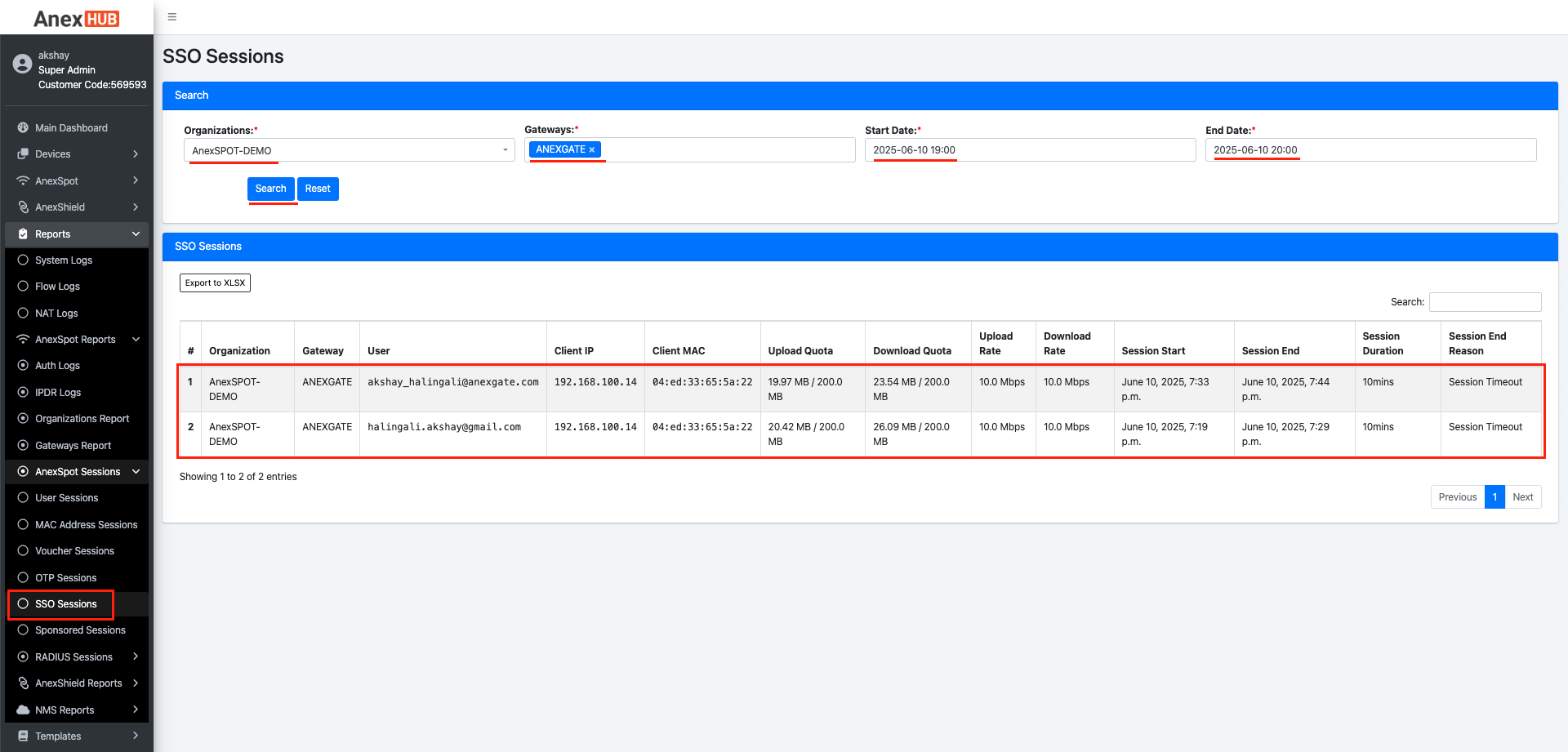
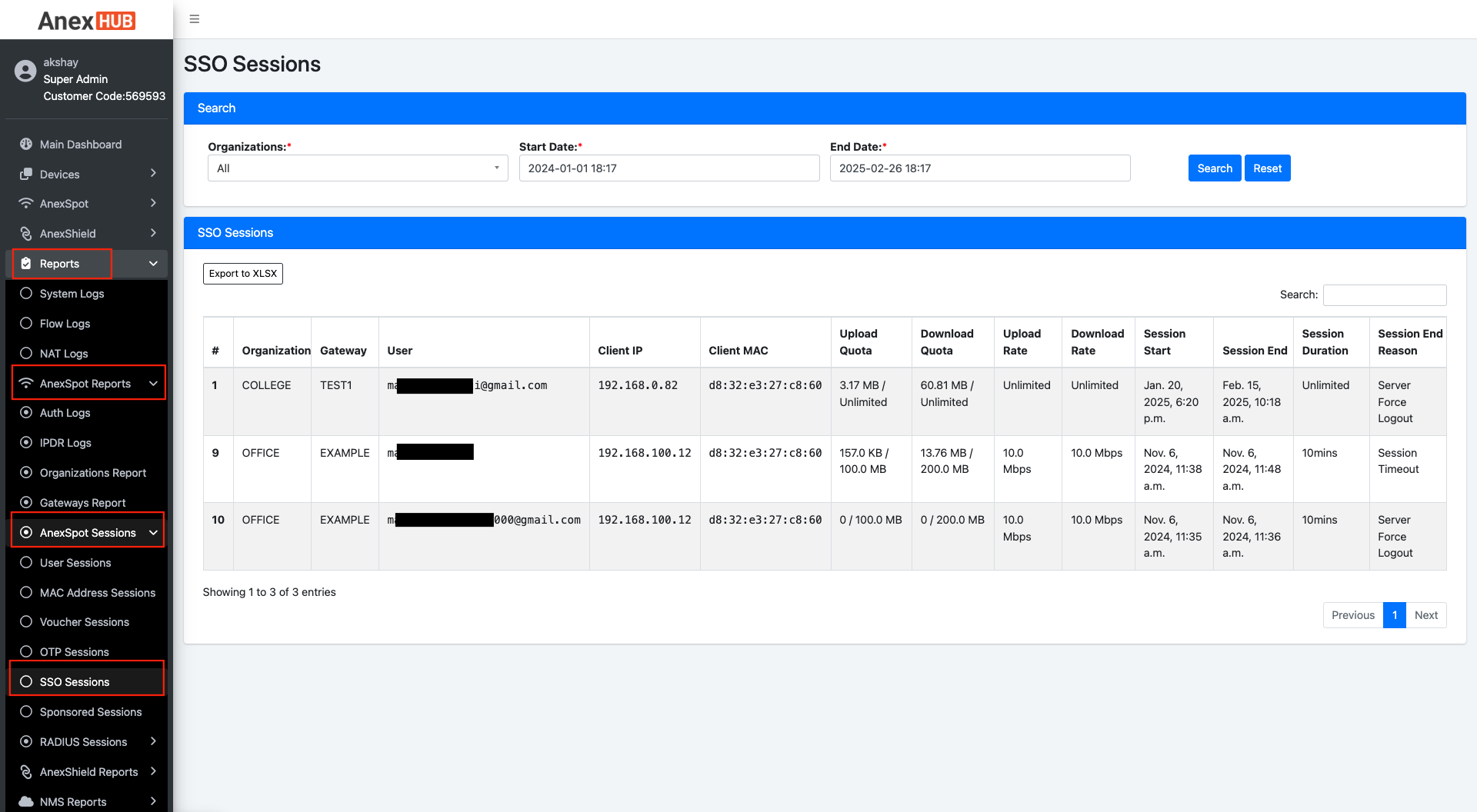
¶ SSO Sessions
| Element | Description |
|---|---|
| Organization | Displays the Organisation name of the single sign-on (SSO) sessions. |
| Gateway | Displays the Gateway name of the single sign-on (SSO) sessions. |
| User | Displays the client username of the logged out single sign-on (SSO) sessions. |
| Client IP | Displays the client IP address of the logged out single sign-on (SSO) sessions. |
| Client MAC | Displays the client mac address of the logged out single sign-on (SSO) sessions. |
| Upload Quota (MB) | Displays the Upload quota usage of the logged out single sign-on (SSO) sessions. |
| Download Quota (MB) | Displays the Download quota usage of the logged out single sign-on (SSO) sessions. |
| Upload Rate (MBPS) | Displays the Upload rate assigned to the logged out single sign-on (SSO) sessions. |
| Download Rate (MBPS) | Displays the Download rate assigned to the logged out single sign-on (SSO) sessions. |
| Session Start | Displays date and time of the session start of the single sign-on (SSO) sessions. |
| Session End | Displays date and time of the session end of the single sign-on (SSO) sessions. |
| Session Duration | Displays total session duration of the logged out single sign-on (SSO) sessions. |
| Session End Reason | Displays reason for the session end of the logged out single sign-on (SSO) sessions. |
¶ Sponsored Sessions
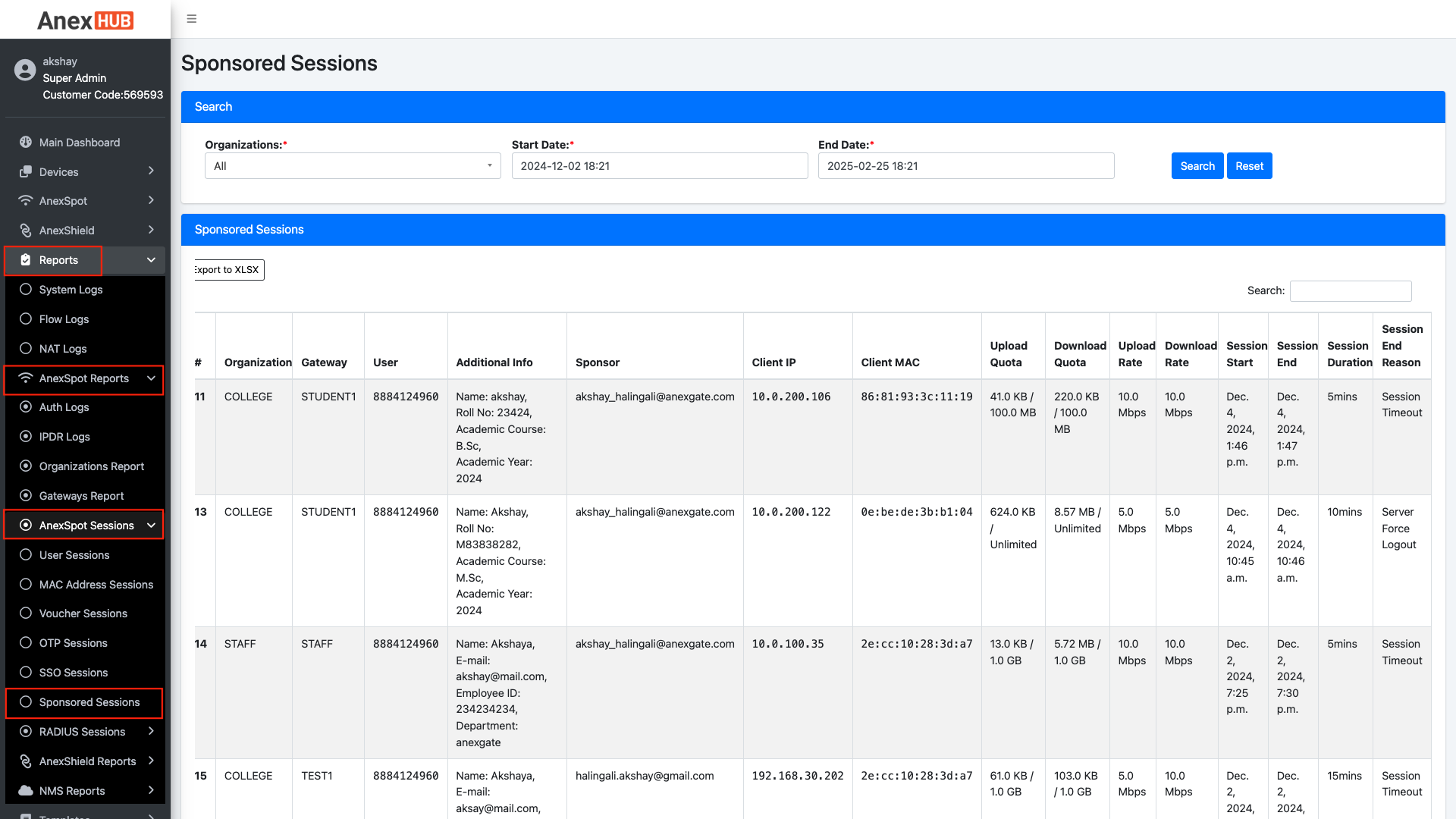
| Element | Description |
|---|---|
| Organization | Displays the Organisation name of the sponsor sessions. |
| Gateway | Displays the Gateway name of the sponsor sessions. |
| User | Displays the client user detail (mobile number) of the logged out sponsor sessions. |
| Additional Info. | Displays the user information submitted for the sponsor approval. |
| Client IP | Displays the client IP address of the logged out sponsor sessions. |
| Client MAC | Displays the client mac address of the logged out sponsor sessions. |
| Upload Quota (MB) | Displays the Upload quota usage of the logged out sponsor sessions. |
| Download Quota (MB) | Displays the Download quota usage of the logged out sponsor sessions. |
| Upload Rate (MBPS) | Displays the Upload rate assigned to the logged out sponsor sessions. |
| Download Rate (MBPS) | Displays the Download rate assigned to the logged out sponsor sessions. |
| Session Start | Displays date and time of the session start of the sponsor sessions. |
| Session End | Displays date and time of the session end of the sponsor sessions. |
| Session Duration | Displays total session duration of the logged out sponsor sessions. |
| Session End Reason | Displays reason for the session end of the logged out sponsor sessions. |
¶ TEST CASES
¶ SSO Based Login
¶ AnexSPOT Configuration
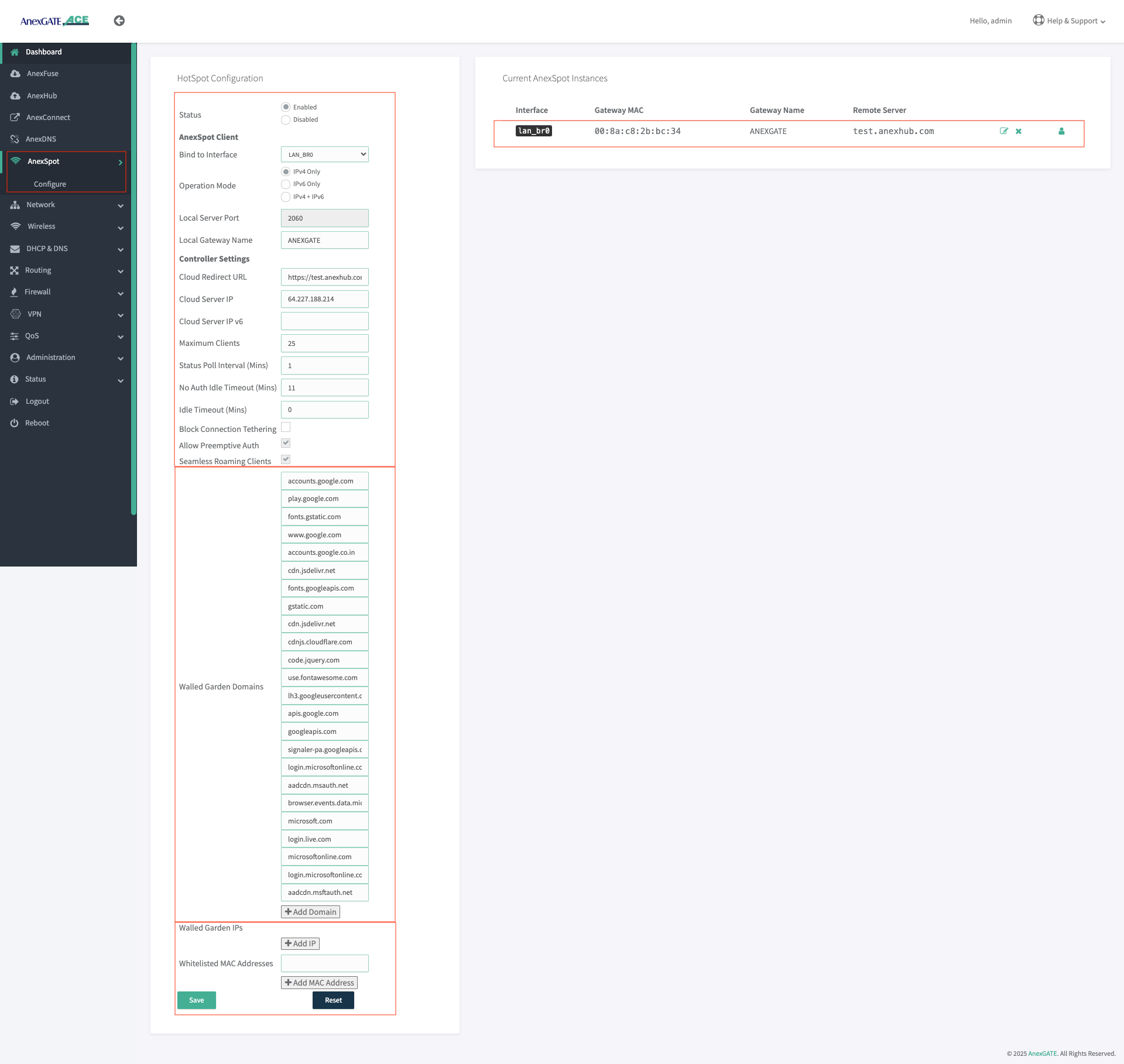
AnexSPOT configuration on the router with whitelisted domains for SSO Based Login. For more information on how to configure AnexSPOT in the router check AnexSPOT Router.
¶ AnexSPOT Cloud SSO Access Profile Configuration
Configure SSO Profiles and enable mode of SSO Authentication accounts such as Google or Microsoft.
Note - Client ID and secret key is required for the Third-Party account authentication.
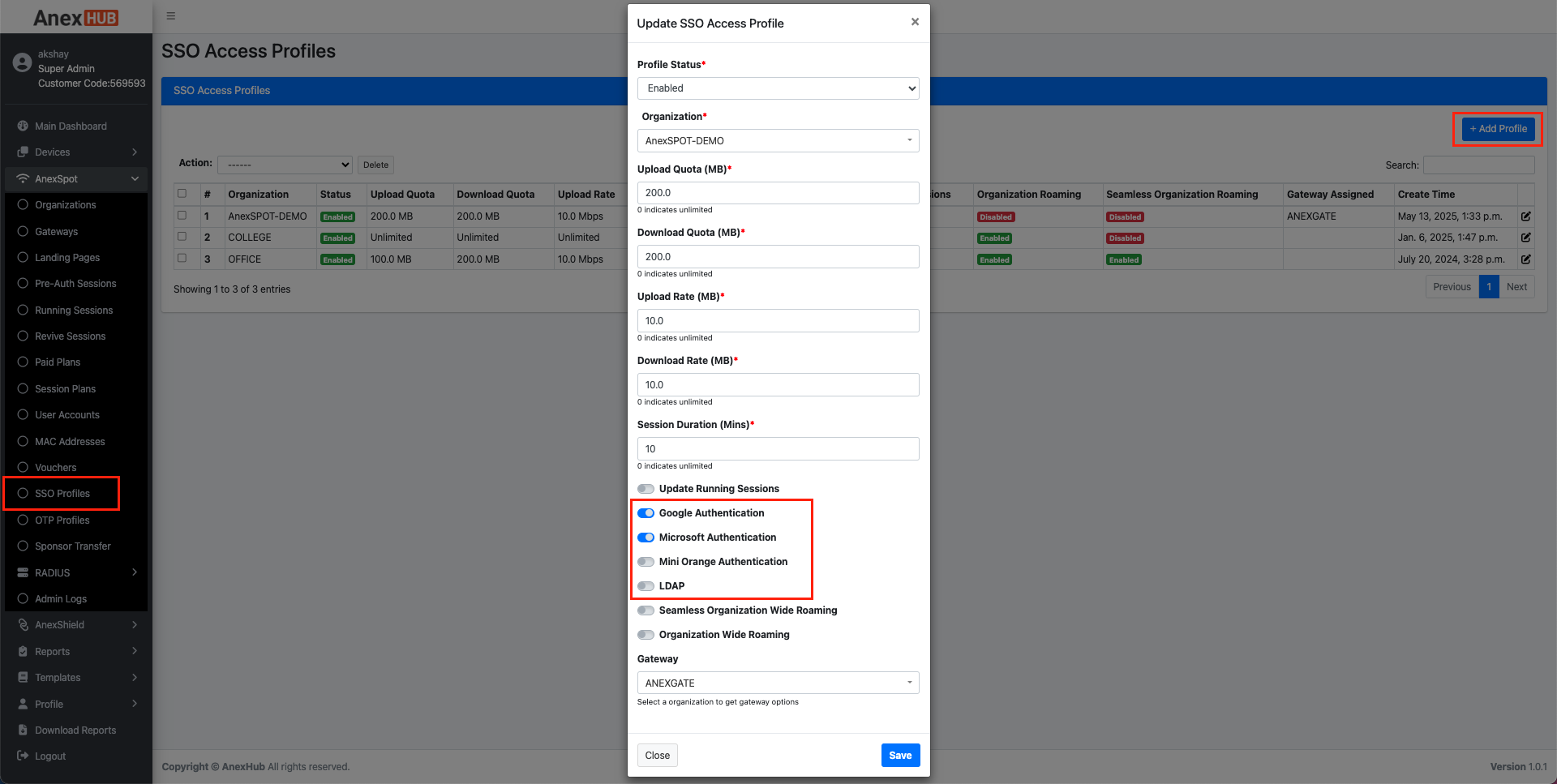
NOTE - Proper Client and Secret Key of the Service Identity Provider must be generated for the SSO based login to work.
¶ SSO Login
¶ SSO Login Page
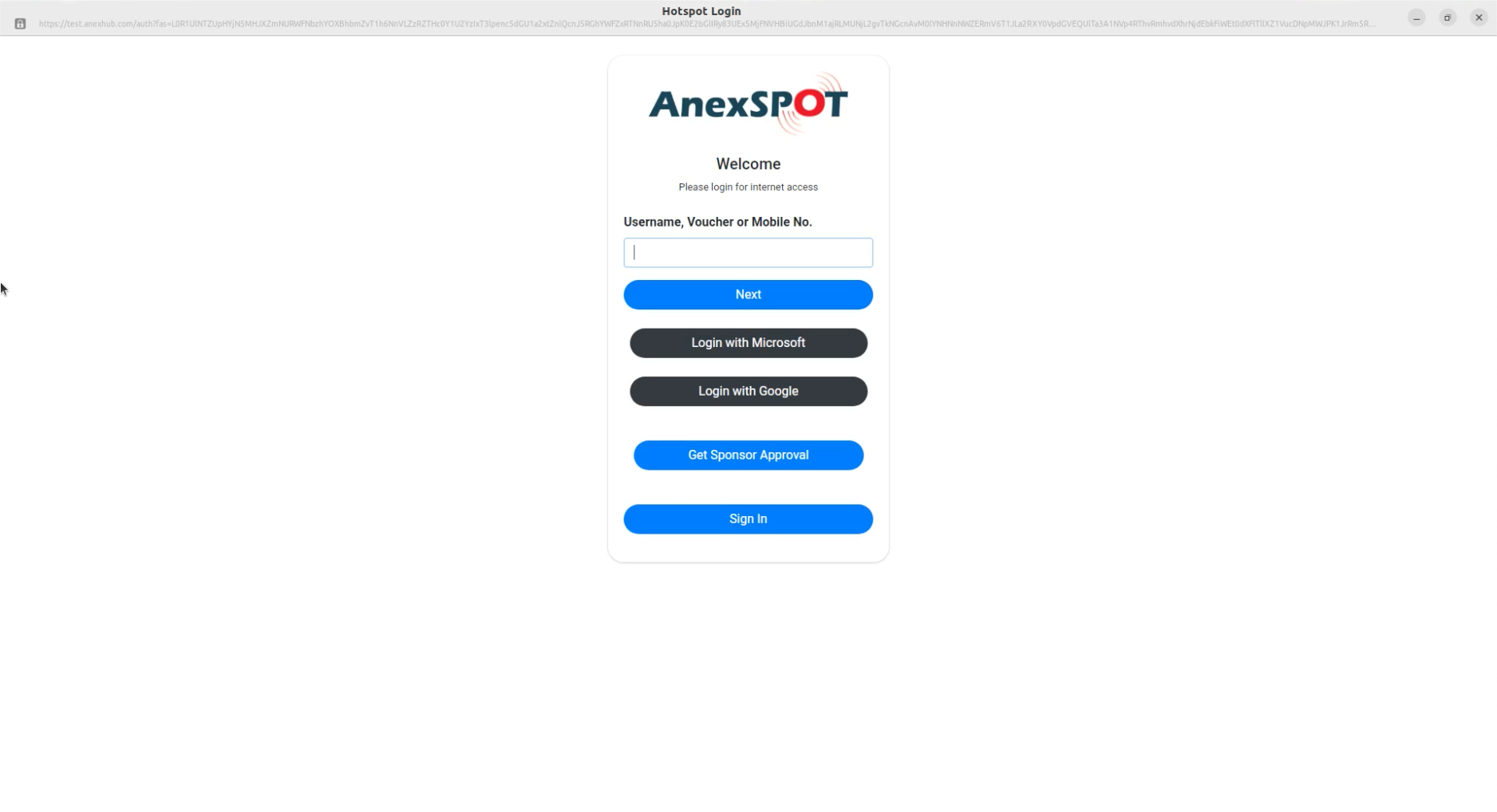
When connected to an AnexSPOT network, the user is redirected to the AnexSPOT Login Page with various Authentication mode options. For Single Sign On (SSO) Login click on any of the Login with Tabs for SSO account login.
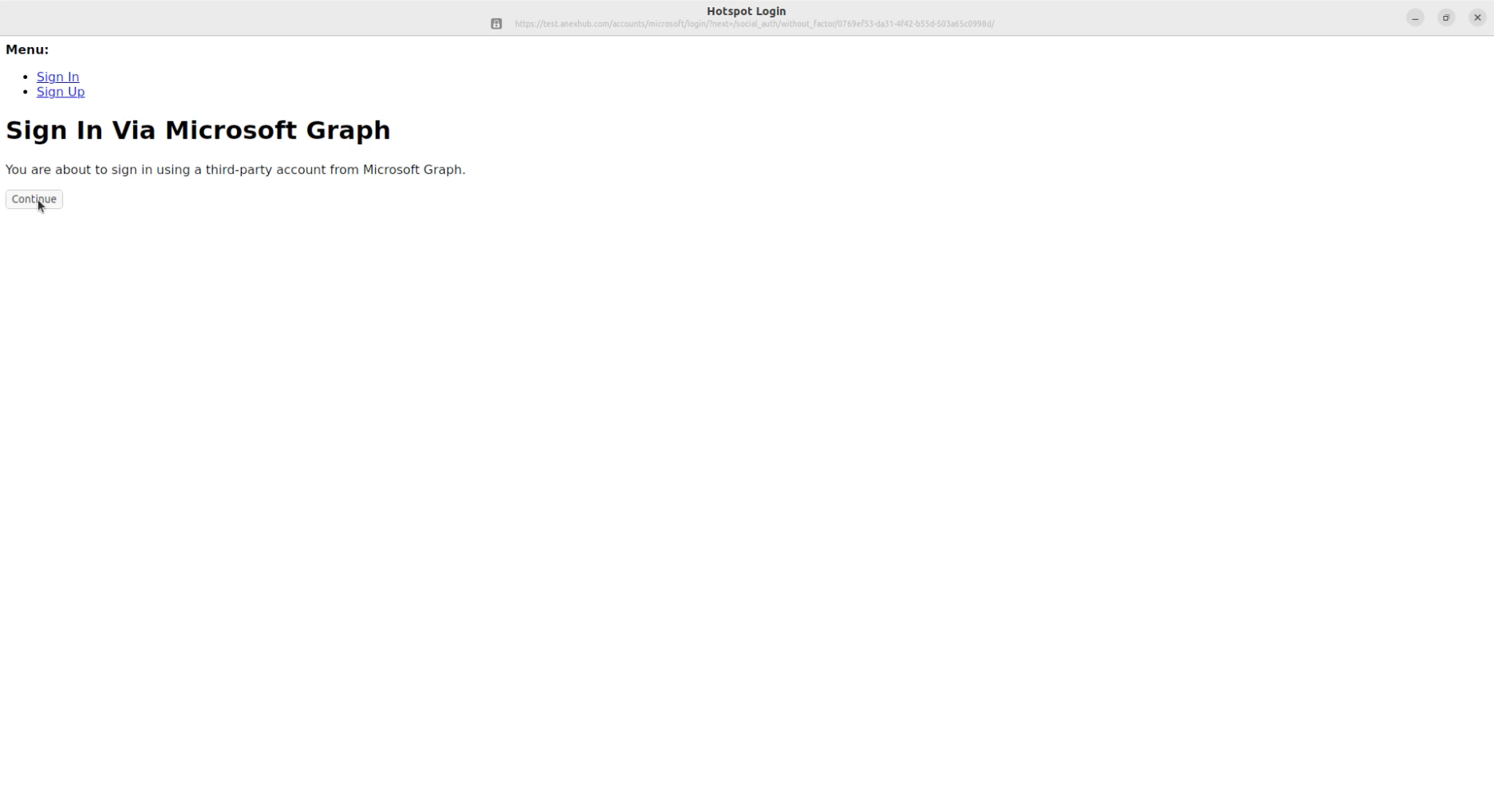
¶ Login with Microsoft
Third-Party Account Page
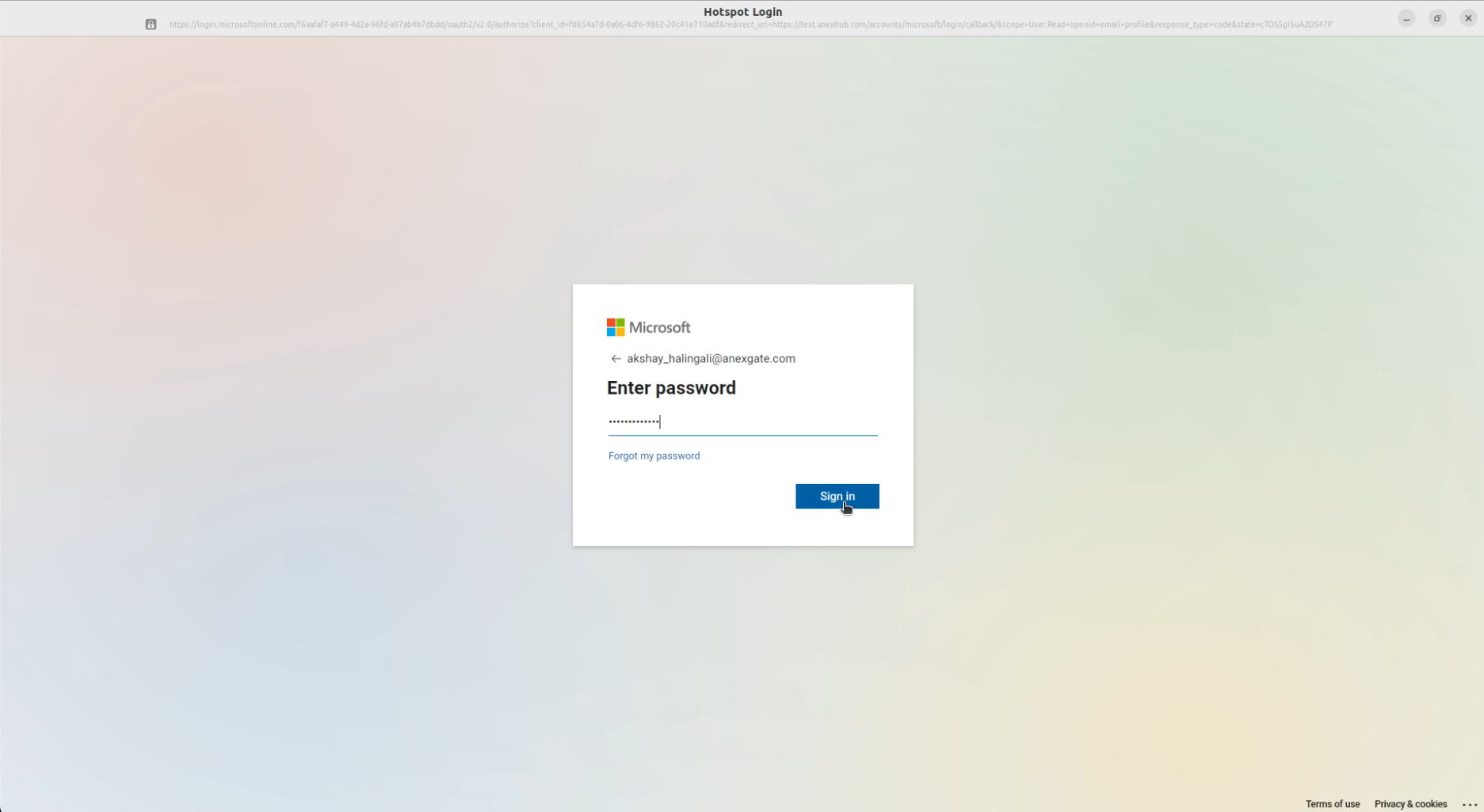
Microsoft Login
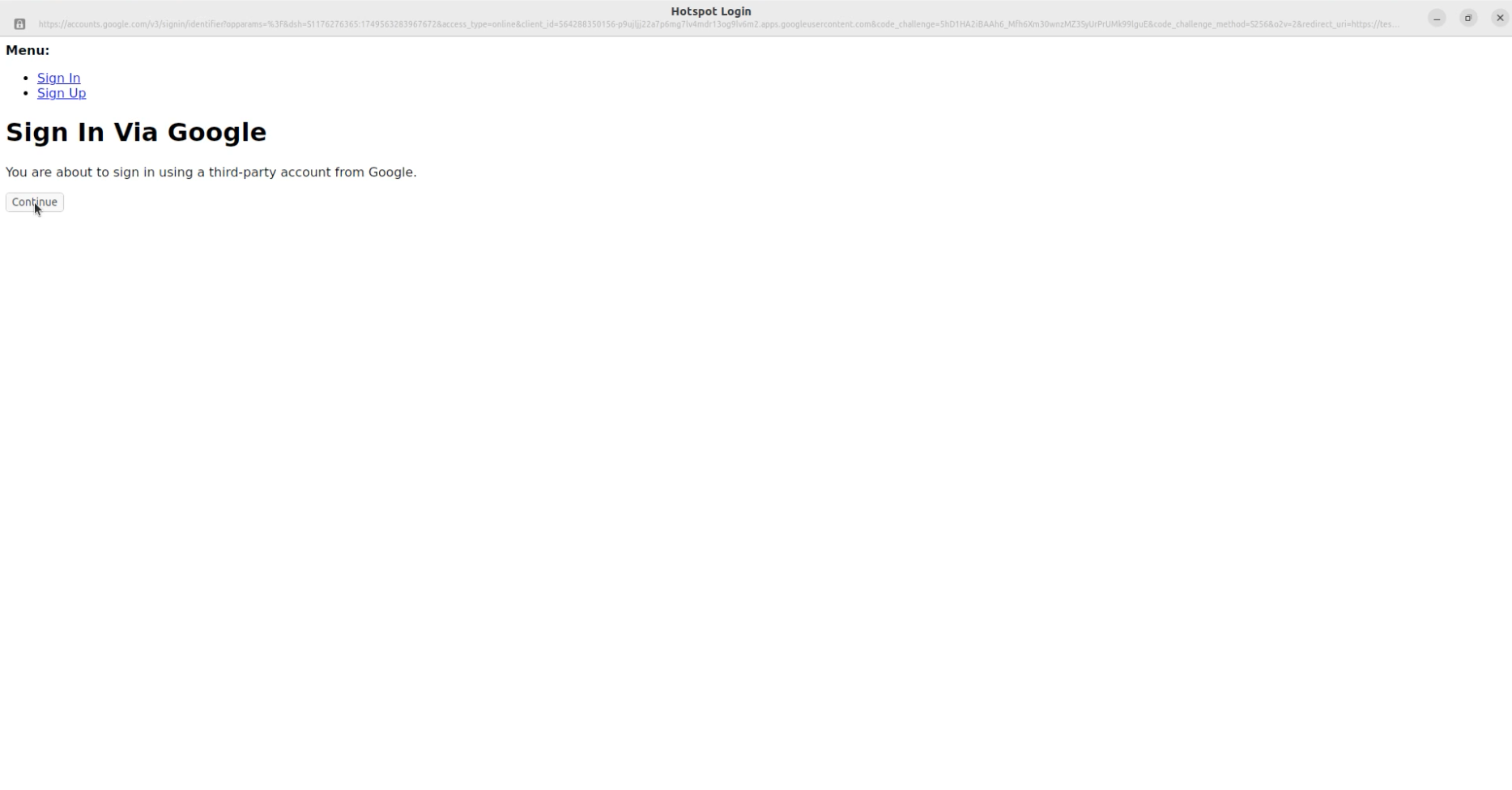
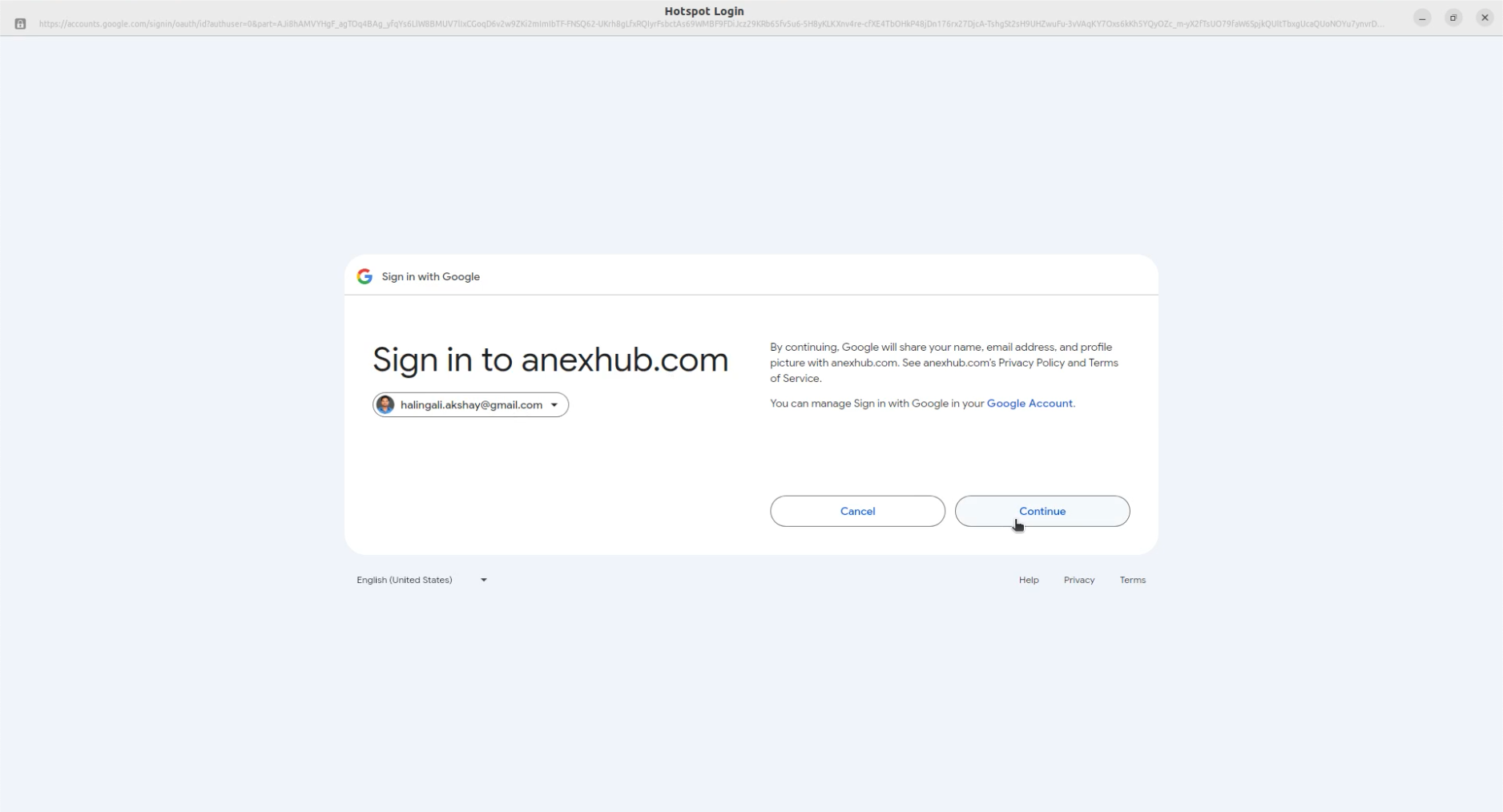
¶ Login with Google
Third-Party Account Page
Google Login
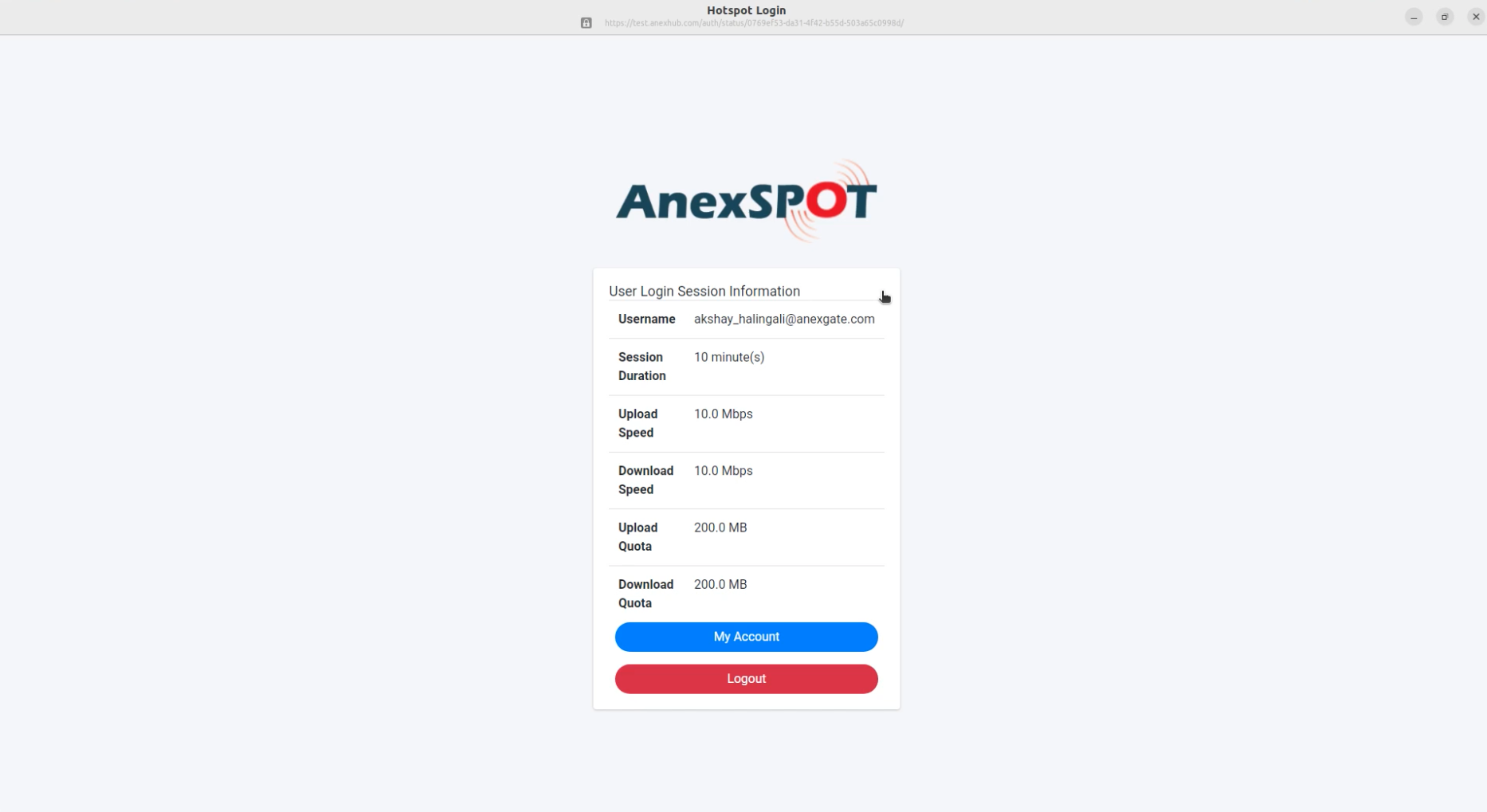
¶ Authentication Success with Authorisation Details
The authentication is successful after SSO Login. The Session Tab also displays the authorised information details.
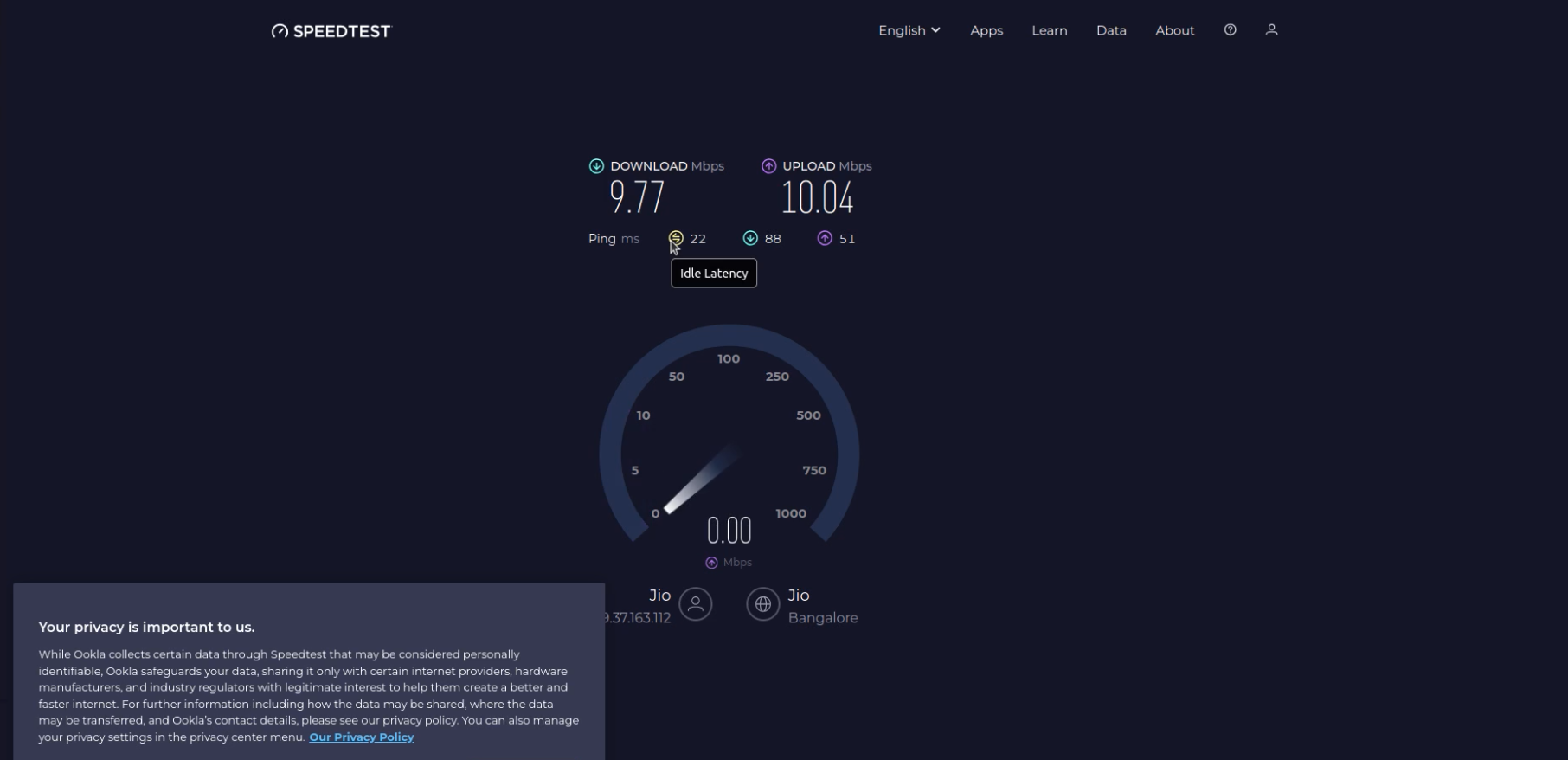
¶ SpeedTest with Authenticated User
The speedtest displayed for the user logged in with Single Sign On account, authorised with 10mbps bandwidth and 200mb data quota for 10 minutes of session duration.
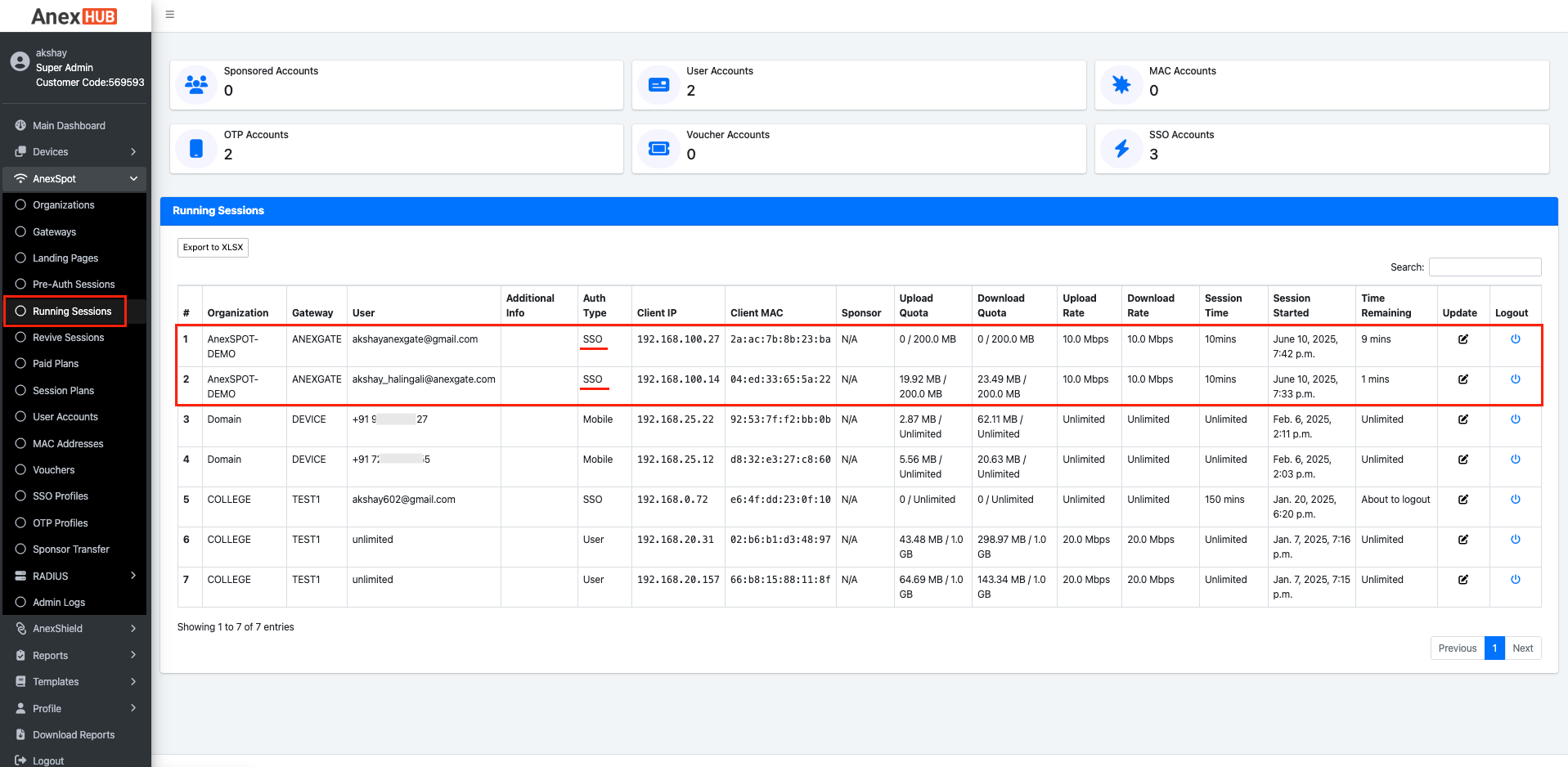
¶ SSO Login Running Sessions
Running sessions show the live running account sessions. The SSO Running Session is displays user and device details along with the usage data statistics and session information.
¶ SSO Sessions Report
The SSO Sessions Report display the SSO Logins that have been expired from the session. The report shows the data usage and Session start and end along with the user and device details.